You need the send messages duty. Choose the Messages space, then press New message.
Nothing goes out until you press Send.
1. Who is it for?
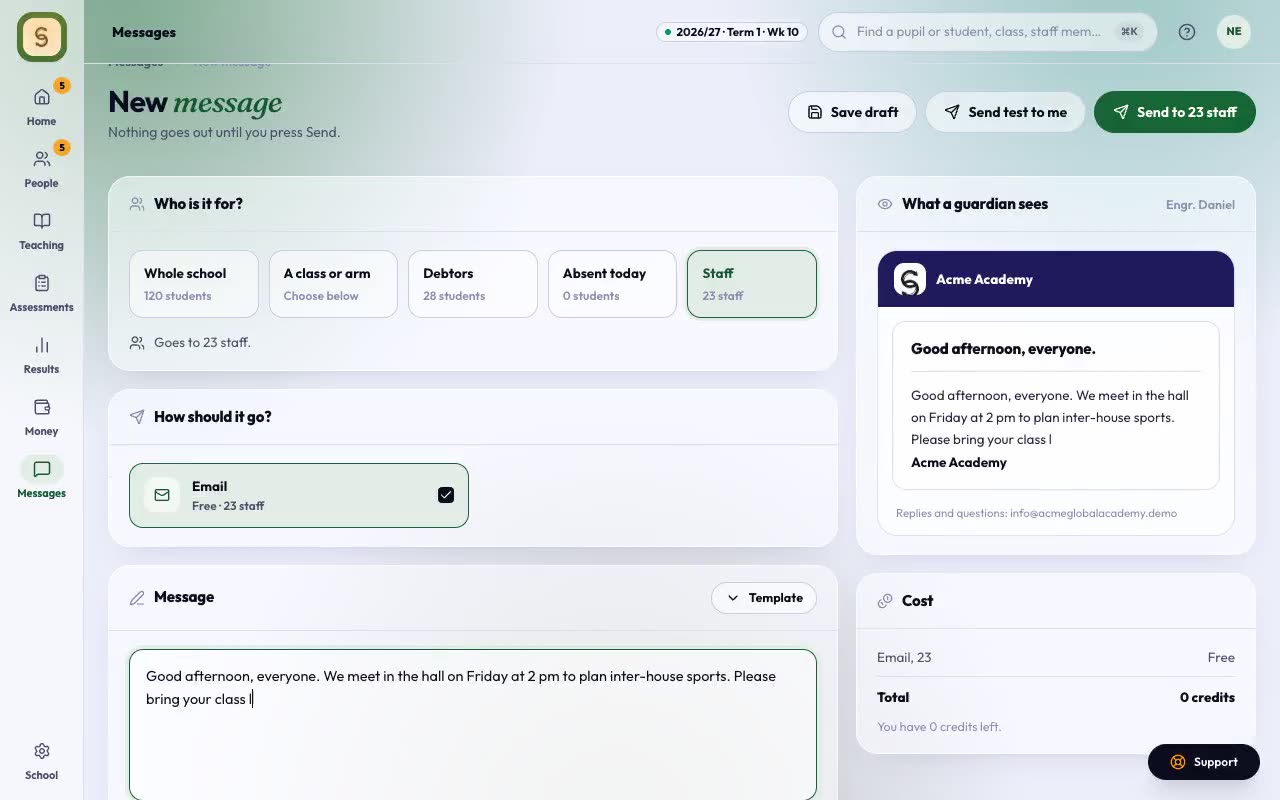
Choose one:
- Whole school
- A class or arm (then pick the class)
- Debtors (when Fees is on)
- Absent today (when Attendance is on)
- Staff
The page tells you how many guardians it goes to. No guardian gets it twice, even with several children. It also says how many can’t be reached by the ways you’ve ticked.
2. How should it go?
Tick WhatsApp, SMS and/or Email. You only see the ways your school has switched on.
- Email is free.
- WhatsApp and SMS use messaging credits.
- If both are ticked, a WhatsApp that fails goes by SMS, which costs more.
3. Write it
Type your message (up to 1,000 characters), or start from a Template: fee reminder, PTA meeting, mid-term break, school closed, or one your school saved.
- Words in brackets, such as [Guardian’s name], fill themselves in for each family.
- The counter shows how many SMS each message takes.
- The preview shows what parents will see, and the Cost box shows the credits it will use.
4. Send
- Send test to me first if you want to check it.
- Save draft keeps it for later.
- Send to … guardians sends it. You’ll be asked to confirm, because it uses credits and can’t be taken back.
Afterwards
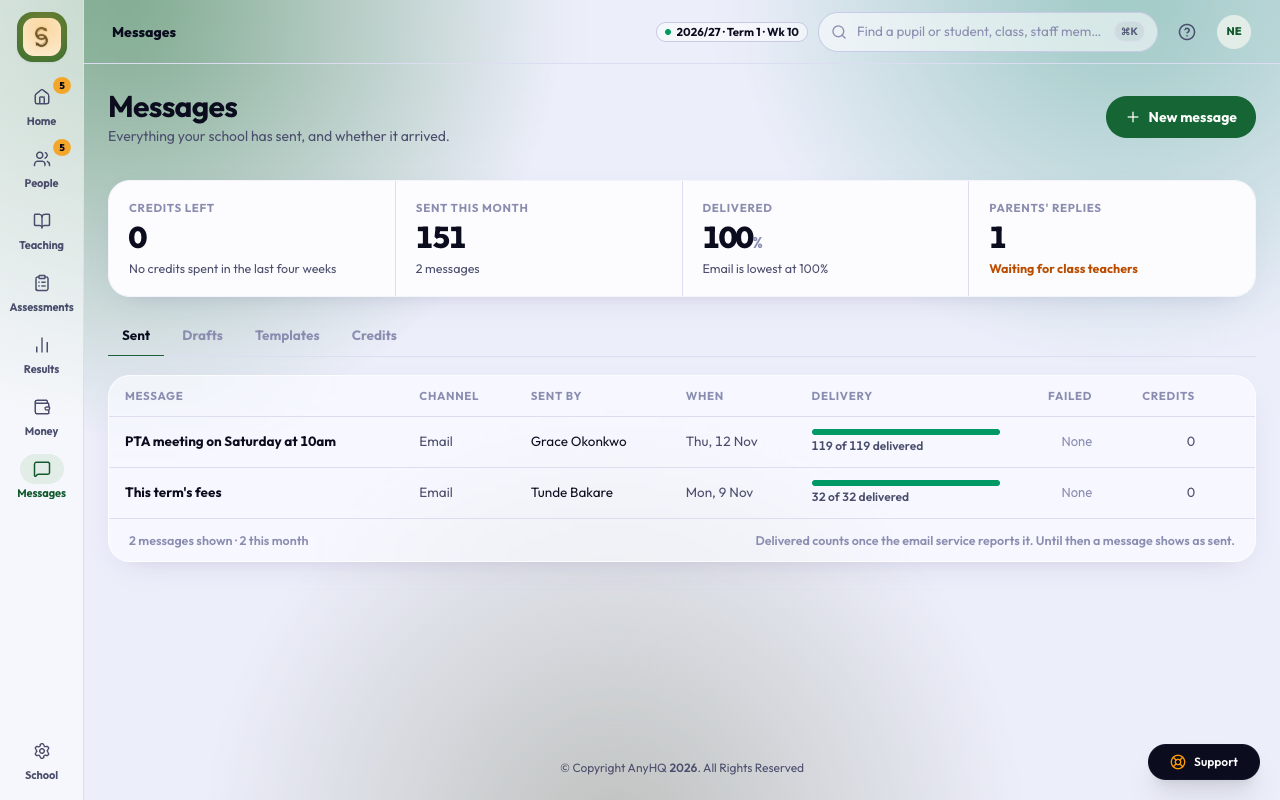
The Sent tab shows every message, how it went and whether it arrived. If some didn’t arrive, open the failed count and press Resend to failed only.
Credits shows how many credits are left. Templates keeps messages you send often.