Everyone on staff sees the exam timetable
Teachers see when each of their papers sits, and Home reminds them the day before.
Read the help articleEvery change we ship, for staff, parents and students. Schools get each one the day it's ready; inside AnySchool, each person sees only what touches their work.
v2026.11.18
Teachers see when each of their papers sits, and Home reminds them the day before.
Read the help articleEvery paper gets its time from the timetable, and any later change is live at once and listed for everyone.
Read the help articleOne click places every paper of the exam week so no student sits two at once, and anything left is listed with a free sitting to fix it.
Read the help articleTeachers pick the week a test or exam sits in; the school's timetable places every paper so no class has two at once.
Read the help articleThe school sets its CA, mid-term and exam weeks, the sittings each day and its CBT rooms, so every test sits in school hours inside the term.
Read the help articleParents and guardians see the papers their student sits, by day, and get an email when the timetable is published or a paper moves.
Read the help articleA class bigger than its computer room sits in batches by surname, each with its own start, so no student waits without a seat.
Read the help articleExams written on paper in the classroom go on the exam timetable with the CBT papers, so no student has two at once.
Read the help articleBefore you start a paper, Your exams lists the papers you sit, with the day, time, room and length of each, and whether to bring your answer booklet. When you submit, it tells you your next paper.
Read the help articleOne page per class in the school's letterhead, or the whole school on one page for the notice board.
Read the help articleA test whose essays are answered on paper now prints its own answer booklets: one per student with their name, admission number and class on the cover, a marks table for the teacher, and a ruled page for each essay under its question number. Add blank copies for spares, and print the questions too only if you want them. The preview now shows booklet essays exactly as students see them.
Read the help articleStudents read every question on the computer, write the essays in their booklets and answer the rest on screen, so slow typing never eats the time. Each student's essays wait in Marking for the teacher to mark from the booklet, and the score adds up as they go.
Read the help articleThe sign-in page now asks only for your email. Right after your code, AnySchool asks once on each device whether to stay signed in. Press Yes on your own phone or computer, so your lists open fast and the register works without internet. Press No on a staff-room or ICT-lab computer, and nothing from your school is kept on it.
Read the help articleA holiday or break on the school calendar is a day off in its exam week, and Suggest timetable never puts a paper on it. A holiday for one section closes the day only for its classes. If a holiday is added after papers are placed, Needs a look lists them with a Move button. Each published exam week also shows on the Calendar as one block.
Read the help articleWhen the school publishes its exam timetable, the week shows on Calendar with the names of the students who sit papers in it.
Teachers choose the day, morning, afternoon or evening, and how long a test stays open, so there are no AM and PM slips.
Read the help articleTapping something under Needs you on Home, or in Waiting for you at the top, now opens its page at the exact card that fixes it, with a short ring around it so you see where to look. Tests that run past the term, term dates, results to approve, registers not taken and the rest all land on their own card.
Each exam choice now says where its scores go: only the end-of-term exam fills the report sheet. A mock is for exam-year classes and says what it prepares for. Before you approve, a test starting before 7:00 am or ending after 6:00 pm, one open for more than two weeks or past the term's end, and a mock are listed to fix or confirm. An assessment waiting for approval moves up Home three days before it starts.
Read the help articleEssays no longer start at 1 mark: type each one's marks as on your marking guide, or give them all the same with Give each essay. The paper now shows its Objective and Essays parts with their marks, and Spread marks leaves the essays' marks alone. Before you approve, any essay still worth 1 mark is listed to fix or confirm, and Home reminds you about a test this week whose essays are still at 1 mark.
Read the help articlev2026.11.17
Schools confirm each term's start and end date on Sessions and terms, starting from the usual Nigerian calendar. Term work waits until the current term has its dates, so no test runs into the holiday.
Read the help articleEvery test shows the school's test address with Copy, Share on WhatsApp and a projector view, and printed code slips carry it, so students know where to go.
Read the help articleIf a question's right answer was wrong, change it and save: you see how many students in how many tests it reaches, then they are re-marked. Where the class results are already approved, the change waits for someone who approves results to apply it, so approved results never move on their own. When it is applied, the parents of the students whose score changed get a short email. A question that was faulty can be given to everyone as a mark. Fixing wording or options never changes a score, and every change is in the activity log.
Read the help articleEvery test runs within its term and closes three days before the term ends, so teachers have time for marking and report sheets before the holiday.
Read the help articleA student whose network drops during a test keeps answering and hands in. The answers wait on the computer and go in by themselves when the connection returns.
Read the help articlev2026.11.16
Settings › Set-up check lists nine checks worked out from your school's records, such as parent records with no phone, staff with no duty and possible duplicate students. Each shows how many records it affects and opens the page that fixes it, and Home shows the next one you can fix. If a check doesn't apply to your school, switch it off and say why.
Read the help articleGuardians › Fill in missing details downloads every parent record with no name or phone, with the students' names, so you can fill them in from the admission forms and upload. Only blanks are filled, and you see every change before it's saved. Staff has a No duty filter and can switch off the account of someone who has left. Positions can remove the ones nobody holds, and Students lists possible duplicates to merge.
Read the help articleOn a computer other people use, tick This is a shared computer when you sign in. Nothing from your school is kept on it. On your own phone or computer, what AnySchool keeps is deleted when you sign out.
The dot on your picture, top right, is green when you're connected and grey with a crossed-out cloud when you're not; rest the mouse on it to see when AnySchool last synced. When AnySchool can't reach its server, a line under the top bar says so and your work stays saved on this device. Wi-Fi with no data now counts as offline too.
Read the help articleSuggested report comments, question checks, imported questions and students, the Home brief and Performance Analysis now carry a short line: Any Intelligence wrote this and can make mistakes, so check it before you use it. It never prints, and parents never see it.
Read the help articleEvery button that is only an icon, from the spaces down the left to the ⋯ on a table row, now names itself when you rest the mouse on it or move to it with Tab, and each space down the left shows what is inside it. Screen readers read the same words.
Read the help articleA class now has one class teacher and at most one assistant, because a class teacher sees every parent's contact, the pickup adults and past results. Where a class has more, Staff › Teaching asks you to pick them. Everyone else becomes subject teacher of the subjects they entered scores for there, or comes off the class, and you can change any of it before you confirm.
Read the help articleA class teacher sees every parent's contact, the pickup adults and past results for the class. Staff › Teaching now lists classes with more than one class teacher and anyone who is class teacher of more than 2 classes. Make someone the class's subject teacher in one step, or keep them as class teacher. Adding a second class teacher now asks whether they teach a subject instead.
Read the help articleScan the QR code on a report sheet, test result, student ID card or fee receipt, or type its code at verify.anyschool.ng, to check it came from the school. Codes printed before still work.
The tabs at the top of each Results page now follow the steps in the menu: Report scores, Score sheets, Review, Report sheets, then Broadsheets. In Assessments, Access codes now come before Live sessions.
In Report settings, press Full size under any design, the advanced ones too, to see the whole sheet with your letterhead on a made-up student. Turn it over to see the back page.
Choose Small, Normal or Large text from your account menu. Every screen changes at once, and your choice follows you to any phone or computer you sign in on.
Sign out now asks "Sign out of AnySchool?" before it ends your session, so a stray tap on a shared phone or computer doesn't sign you out.
The Head of ICT, ICT officers and an Exams officer who holds the post for a section, such as Secondary, can now open Exam rooms to add the CBT centre's network and enrol lab computers. It's on Assessments and on Access codes. Before, the page sent them back to Assessments.
Read the help articleIf a student's parent record has a member of staff's own email or phone, that person no longer sees the student in the parents app, and no messages or results go to them. Guardians lists these records so you can put in the parent's own contact, or confirm that the member of staff really is the parent.
Search on the Staff page now looks through every member of staff, by full name in any order, email, staff ID or job title.
v2026.11.15
Parents and guardians now read each report sheet's Performance Analysis inside the parent app, in full once the report fee is paid.
Read the help articleThe end-of-term report fee now opens the report sheet with its full performance analysis and insights; there is no separate insights purchase. Waived and free results show the headline and strengths, and every sheet can be checked online with its QR code.
Read the help articleParents and guardians now read each report sheet, and pay an end-of-term report fee, without leaving the parent app. After paying, they land on the open report sheet.
Read the help articleWhen a teacher leaves, the school hands their assessments and questions to another staff member as it removes them, even if their email no longer works.
The class teacher's and principal's names now sit under their comments in a signature style, and a school without a signature picture gets the principal's name signed above the line. The top of the sheet is now called the Report sheet header, under Report settings › Header. Print on Organogram and Who's who prints just the chart, on one landscape page, with the school's name and the date.
AnySchool now opens in Light for staff and parents, in the school's own colour. Anyone can still switch to Dark or pick another colour.
Pin the menu open with the pin at its foot, or leave it folded to icons; it opens over the page only when you rest on it, and folds again as soon as you pick a page. As you scroll down a page, its title moves into the bar at the top, with search one tap away by Help. Home now uses the whole width of a wide screen.
The staff sign-in now lives at staff.anyschool.ng/sign-in. Old admin. addresses and /auth/sign-in links still bring you here. Sign in from the website opens AnySchool in one tab and goes back to it the next time, instead of opening another.
Home now names the staff who have no class, subject or position yet when there are three or fewer, and the Staff page lists them all at the top. Tap a name to find that person and give them a position, a class or a subject.
On a phone, Report scores shows one card per student with a big box for each column, so you no longer swipe sideways. Next on the keyboard moves across the card and on to the next student, the total adds itself, and Submit class stays at the bottom of the screen. A computer keeps the grid.
Read the help articleOn a phone, a broadsheet is now one row per student: position, name, average and grade, with the top three in gold. Tap a student to see every subject's score, with missing ones marked. By subject lists each arm in rank order. If your school uses Budget, its tables become rows too. Print and a computer still show the full sheet.
Parents paying fees on a phone see what they pay and the Pay online button at the bottom of the screen while they read the bill.
On phones, forms slide up from the bottom with the main button within reach, every button is big enough to tap, and typing no longer zooms the page. Computers look the same as before.
v2026.11.14
The first time you open one of these pages, a few steps point out what's on it. To see a page's tour again, tap ? and choose Show me around this page.
Read the help articleThe first time you open AnySchool, a welcome shows you around: the menu, search, help for the page you're on, and Support. Take it again any time from Support › Take the welcome tour (under More on a phone).
Read the help articleScan cards now has Arriving and Leaving. At home time, switch to Leaving and scan each card: the time they left is kept, and their parent sees it. Scanned the wrong card? Press Undo on the last scan. Undoing an arrival puts back an absence the scan had corrected.
Read the help articleWhen your student is scanned in at the gate or marked in the register, their page updates by itself within a few seconds and says when they arrived. You no longer need to reload it.
Read the help articleTwo new pages sit beside our Terms and Privacy Policy. Service levels: 99.5% availability a month for the web app, critical issues answered within an hour, maintenance at night and never during a scheduled test, and records backed up every day. Data processing: the school decides, we process its records for it, records are stored in the European Union, and a breach is reported to the school within 48 hours.
Parents fill in their ward's medical form in the parent portal: blood group, genotype, allergies, conditions, medicine, the family doctor and consent for emergency treatment. Class teachers see allergies and conditions; the rest stays with the staff who manage the student, and each look is recorded.
Read the help articleEach student has a list of the adults allowed to collect them, besides their guardians: a driver, a nanny, a relative, with a phone number and a photo. Parents keep it up to date in the parent portal, staff see it on the student's page, and the gate prints a pick-up card.
Read the help articleUnder each subject teacher's end-of-term comment sit two short lines: what went well and one thing to do next. On the Ledger report sheet every subject line carries a small check code, and the sheet's check page lists the codes so a family can match each line.
Read the help articleYour apply page has an Ask the school form, even while no intake is open. Families leave their number and question with no account, and Admissions keeps every enquiry in one list to call back, note and turn into an application.
Read the help articleEach intake can carry the school's admission policy, starting from a sample you edit. Families read it and tick that they accept it before they apply, the printed form includes it, and every application shows when it was accepted.
Read the help articleStudents has a page that counts the roll by LGA, area and bus stop, with how many want the school bus. Filter by class, count open applications to plan next session, and download the counts, or a list with names and a guardian's phone for staff who can see students.
Read the help articleOnce a session, the parent portal asks whether a ward still lives at the address the school has. Parents confirm it in one tap or change it with the same state, LGA and area lists, add the NIPOST digital postcode, and give a brother or sister the same address.
Read the help articleBudget's forecast starts from today's roll, fees and admissions offers and shows the surplus or loss for the next three sessions, with the roll at which the school breaks even. The board tries more or fewer students, fee rises and costs, and saves the scenario. A school group sees every branch and the total.
Read the help articleBudget's overview puts what the school actually collected and spent next to the session budget, by month, by term and by category. Fee income comes straight from Fees. A school group sees every branch and the total.
Read the help articleAddresses typed before AnySchool's address list now say which area they look like, such as Kubwa, Bwari Area Council, FCT. Staff confirm one at a time or all at once, and the student import takes state, LGA, area, bus stop, postcode and school bus columns.
Read the help articleA school with Budget switched on plans the session a term at a time. Fee income comes from each class's fees, the students enrolled and how much the school collected last session; staff pay, diesel, rent and the rest are typed in, and the surplus or loss shows as you type.
Read the help articleThe application form asks where the family lives: state, LGA or FCT Area Council and area from one list, then the street, nearest bus stop, the NIPOST digital postcode and whether they'd like the school bus. Enrolling carries it to the student's record.
Read the help articleA school with Budget switched on records its spending and income that isn't school fees, with a photo of each receipt. Wrong lines are voided with a reason, never deleted, and the board sees the totals.
Read the help articleA student's profile has a Home address card: state, LGA or FCT Area Council and area from one list of every state and LGA, then the street, nearest bus stop, the NIPOST digital postcode and whether the family wants the school bus.
Read the help articleA class teacher's Home shows Birthdays this week for their class, and School Leadership also sees staff birthdays, here and on the Calendar. Add your own in your account (day and month, no year) or hide it. Where the school switches on Birthday Greetings, it also sends a short birthday email to parents and staff at 7am on the day.
Read the help articleA school that asks for it gets a History tab on each student's page and on Fees: one line each for who changed a record, took a payment or gave a discount, and when.
Read the help articlePress Check question under the answers to see spelling and grammar fixes, a warning when two options could both be right, and a note on whether the wording suits the class. Apply each fix with one click.
Read the help articleEmails and the app now use your student's name first, and say "your son" or "your daughter" when the school has you down as their mother or father, instead of the same word for everyone.
Before you publish an end-of-term class, the card now says each result opens once its report fee is paid or waived (mid-term was free), with your school's price for each level. A student with no parent or guardian on file shows No parent or guardian on file on their locked sheet, with Add a parent, Pay for this student and Ask for a waiver, and Report fees counts them and lets you choose them all. Send to parents skips them and says how many.
Read the help articleEvery end-of-term report sheet preview now has a Front · Back switch. The sheet turns over like a page: click the switch, or drag the sheet sideways with the mouse (swipe on a phone), so you can read the back page of subject comments, and spot subjects still without one, before printing. The sample sheets and design cards show a back page too.
Read the help articleWhen your student's card is scanned at the gate on the way out, their page shows the time they left, within a few seconds, without a reload. If the school corrects a scan, your page corrects itself too.
Read the help articleThe board's and the Executive's Home shows next session's forecast surplus or loss, and this term's income and spending against the budget to date. In a school group, the School group page shows them for each branch, with the total.
Read the help articleA head of section can now save and submit subject scores for every class in her section, the same classes she already manages in the class workspace.
Read the help articlev2026.11.13
On end-of-term report sheets, a French, Hausa, Yoruba, Igbo or Arabic teacher's comment can be a short line in that language, with its English meaning in small type under it.
Read the help articleA school's owner can download everything it keeps on AnySchool as one file of spreadsheets: students, guardians, staff, classes, results, fees, payments and attendance, with a guide to every column. Keep it as a backup, or take it with you.
Read the help articleParents and class teachers see a student's term totals as a small line per subject across terms and sessions, with their strongest subjects and those that need attention.
Read the help articleParents see term dates, holidays, breaks, the school's events and their wards' test days in the parent app, a month at a time. The school decides which events are for parents and which stay with staff.
Read the help articleTeachers mark every written answer waiting for them from one page, one question at a time, and each mark adds to the student's score at once.
Read the help articleWhen a school moves to AnySchool, the student import takes each student's earlier classes and enrols them back-dated, so their profile shows every year since admission. Past results come in a term at a time, kept read only and tagged Imported.
Read the help articleParents can ask AnySchool for a copy of everything a school holds about them or their ward, or for it to be removed, as the Nigeria Data Protection Act allows. A removed student's scores stay without a name, so classmates' results never change.
The Governing Board and the Executive now see a table on Home with each branch's fees billed and collected, students on roll, admitted and left, the term's average, attendance, and staff and vacancies. Last term's figure sits under each one, and a group sees all its branches added up. It counts only, so no student is ever named, and money shows only where Fees is on.
Read the help articleNigerian public holidays, international days and, for international schools, UK-pattern breaks come built in. A school adds its own days, such as resumption, PTA and sports day, and registers and fee due dates skip the days it's closed.
Read the help articleOnce a school issues the score sheet, a student who signs in again with their test's code and PIN sees View your result, which opens their verified result.
Read the help articleStudents can make a test's questions larger or switch to high contrast from Display, and sit the whole test with the keyboard: A, B, C to choose, F to flag, arrows to move.
Read the help articleBefore a test starts, the student's ready page shows their passport photo, full name and student number, so the student and the invigilator can check before the clock starts.
Read the help articleA school can list its CBT centre's network and enrol its lab computers, then mark a paper Only in exam rooms. Students signing in anywhere else are refused before the clock starts.
Read the help articleFor their first week, each member of staff's Home says where they sit: their position, its layer and office, what it answers for, and whom they report to, with a link to Who's who.
Read the help articleOur Terms now say what can be refunded, by whom and how long it takes: school fees by the school, a failed or double payment in full within 5 to 10 working days. Every checkout links there.
On a student's Results tab, the Performance Analysis now lists each subject's topics as Strong, On track or To improve, with how many questions they got right in each, such as 4 of 5 right. It comes from the online test questions tagged with a topic. Topics with fewer than 3 questions are left out. Class teachers see every subject; subject teachers see their own.
Read the help articleThe pricing page now explains the end-of-term report fee: the price for each level, that it comes with Performance Analysis, that mid-term results are always free, and how parents or the school pay it online.
Read the help articleHome now has two to four charts for your position. The board sees fees collected by class, students on roll and results; the Principal sees attendance, results and who still owes scores; the Bursary sees money coming in and who owes; teachers see their class's attendance, the scores they still owe and their last tests. Each chart opens the page behind it, and a chart with nothing to show says what to do.
Read the help articleReport sheets, score sheets, broadsheets, receipts, day-end, exam slips, blank forms, printed lists and AnySchool's PDFs now carry a small grey "Prepared with AnySchool" down the right-hand edge as well as at the bottom centre. It sits in the margin, so nothing on the page moves. ID cards keep just the bottom line, and schools that have removed the mark get neither.
On your school's own address, the browser tab, a phone's home screen and the installed app now show your school's logo and name instead of the AnySchool crest. Change the logo in Settings and the icon follows. Schools without a logo keep the crest.
Sign-in, school registration, invitations and the demo and contact forms now say that continuing means you agree to AnySchool's Terms and Privacy Policy, with a link to each, so you can read how we handle your details before you share them.
The browser tab, the link you share and the app you install on a computer all say AnySchool CBT. It's the same place to sit your test, at cbt.anyschool.ng.
After you import a test, the bank shows Add them to an assessment. Each section of the document goes into a new assessment or one that hasn't started, in the document's order, with its subject and class already picked.
Read the help articlev2026.11.12
Students tap Listen to hear each question and its options. A Hausa, Igbo, Yoruba or French test is read in that language, word for word; each word lights up as it's said, and it keeps working if the internet drops mid-test.
Read the help articleA new Who's who page shows the five layers every school is run in, with who holds each position, so a new teacher knows who the Bursar is and who approves results. People who manage positions also see the key seats nobody holds, with a button to fill each.
Read the help articleEvery paper already runs in full screen. A paper that needs more can now ask students to share their whole screen while they sit it; stopping shows to the invigilator. Nothing is recorded.
Read the help articleSetting up a school now has a step called Who runs it. The owner picks their own position, then names the Chairman, Principal, Bursar, Head of ICT and others. Each is invited with their position already given, so they arrive with the right access.
Read the help articleEvery position now sits in one of five layers: Governing Board, Executive, School Leadership, Offices and Teaching. Schools keep their own titles, and new schools start with a Chairman, an Executive Director and an HR Officer.
When a test question or passage is read aloud, students follow each word as it's said, and can pause, change the speed or tap a word to hear it from there.
Read the help articleA card on the parent home shows each change once, and What's new in Account keeps the rest, for the modules their wards' school has on.
Read the help articleAfter an update, each person sees the changes that touch their work once, with a picture and a button to try each. A bursar never gets an exams change.
Each person's Home now leads with what their layer answers for: totals for the board, the day across the school for the executive, an office's own work for the Bursary or HR, and the register for a teacher. A part of AnySchool a school hasn't turned on never shows, and an unbilled term says "Bill this term" instead of ₦0.
Read the help articleEvery read-aloud clip is listened to when it's made. One that skips or repeats words is made again, so students hear exactly what is written.
Read the help articleEvery email a school sends is headed in its own colour, with readable buttons, and students sit tests in that colour too. A very pale or very bright colour is darkened just enough to read.
Staff tap ? and the steps for that page open next to their work, with a search over every help article and a person one tap away.
Read the help articleRead aloud uses the same voice on every test, a woman's unless the school picks a man's.
Students can sit a test on an iPad or Android tablet, held either way. Scrolling never leaves full screen, and if the tablet leaves it by itself the paper carries on; switching apps still counts as a warning.
Read the help articleA clip that's already made plays straight away, and Listen never hangs.
Reply to an email from the school and the reply goes to the school.
v2026.11.11
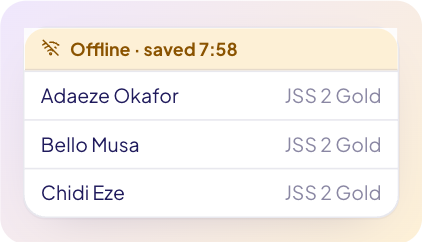
Where the school has it on, staff and parents still open the pages they use most when the signal drops, each showing when it was saved.
Read the help articleA question with a picture now saves the picture every time.
v2026.11.10
A parent with more than one ward at a school pays the total in one go, with one service fee. Each ward still gets their own receipt.
Read the help article