Open an intake
Choose Admissions in the People space. One intake is open at a time.
- New intake opens one.
- Copy apply link gives you the link to share with families.
- Close intake stops new applications.
Admission policy: where Ops has switched on Admission Policy, the intake has an Admission policy section. A new intake starts with a sample policy written from what Nigerian schools publish (who you admit, the documents, the application fee not being refunded, accepting an offer in time, fees and conduct). Change it to your school’s own words, leaving a blank line between paragraphs, or empty it for no policy. Families read it on the application form and must tick that they accept it before they can apply.
The cards show how many applied, finished their forms, booked the exam, got an offer and enrolled.
Enquiries
Where the school has Admission Enquiries on, families can ask a question before they apply. The apply page has an Ask the school link, and while no intake is open it offers the form instead of a dead end. They leave a name, a phone number and their question, with no account.
Each question lands in Admissions > Enquiries under New, and the Admissions page counts how many are waiting. Open one to see the number and the question, then:
- Mark contacted once you’ve called, with a note for the team (“Visiting with her daughter on Friday”).
- Start an application to open Add an application with the family’s names, phone, email and class filled in. When you save it, the enquiry moves to Applied.
- Close an enquiry that needs nothing more.
Anyone who can see Admissions can read the list; changing an enquiry needs the manage admissions duty.
Review applications
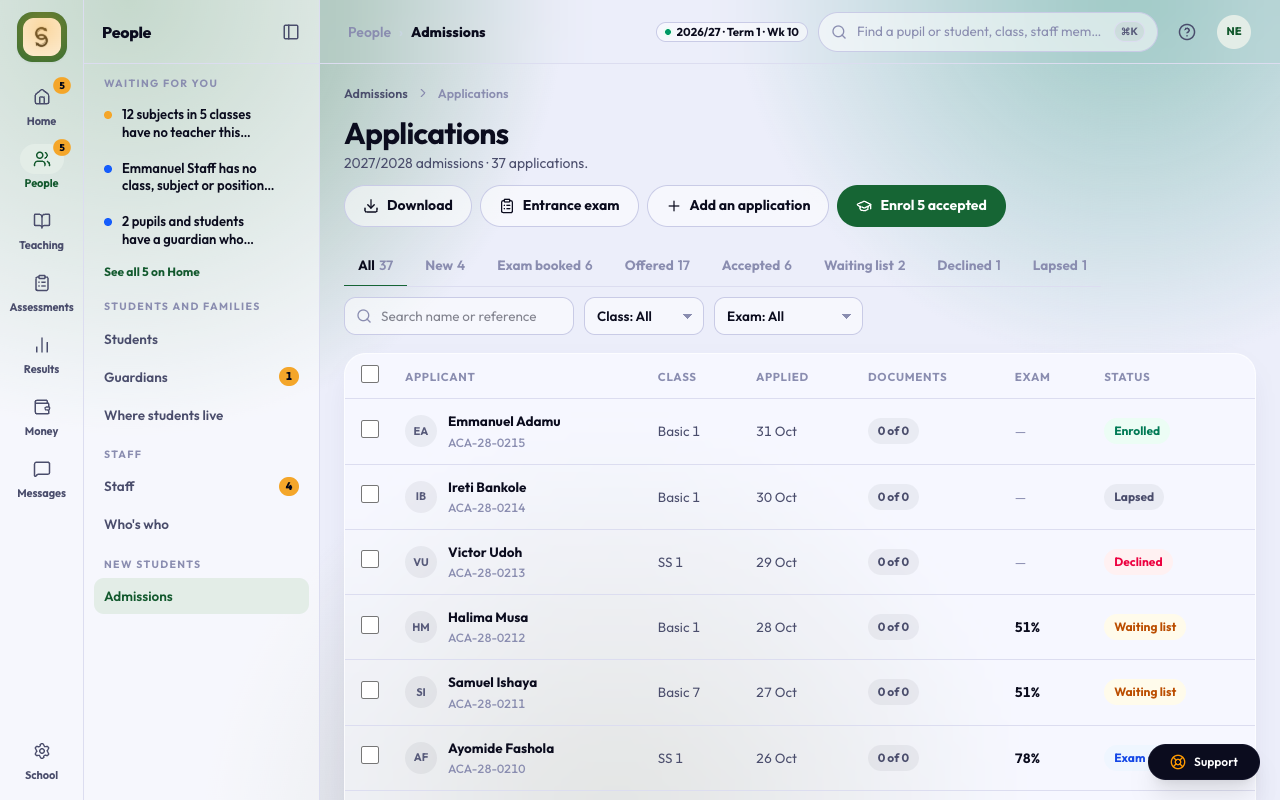
You need the manage admissions duty. Press Applications.
- Filter by status (New, Exam booked, Offered, Accepted, Waiting list, Declined, Lapsed), by class and by exam result. Or search a name or reference.
- Open an application to see the applicant, their parents or guardians, their documents (mark each Checked), their answers, and the history. Notes are seen only by staff.
- Add an application records one handed in at the school. When both parents, or a parent and a guardian, come in, add each of them (up to four people) and choose who is the Main contact: they get the reference, the tracking link and the offer by email. Families applying online can add the other parent too.
- Where they live: where Ops has switched on Where Students Live, the form asks for the state, LGA (Area Council in the FCT) and area from AnySchool’s list, with the street, nearest bus stop, digital postcode and whether the family would like the school bus. Staff see it on the application, and a paper form you add asks for it too. An area that isn’t on AnySchool’s list yet shows as Not on the list yet until AnySchool adds it.
- Admission policy: where the intake has one, the application shows the day the family accepted it. On a paper form you add, tick The parent has read and signed the admission policy; you can’t add it without the tick. The printed blank form includes the policy for the parent to sign.
- Print a blank form, on the Admissions page, prints the paper form for a family to fill in. Choose who is filling it in (both parents, one parent, a guardian, or up to four people) and it prints a labelled section for each. Pick a brother or sister already at the school and their parents print filled in, to check and correct.
Decide
Tick one or more applications, or open one. Then choose:
- Book entrance exam: for classes that admit by exam. The main contact gets the exam codes.
- Offer a place
- Waiting list
- Decline
The entrance exam
The paper is made in Assessments and chosen for each class on the Entrance exam page. Applicants sit it on AnySchool with a code and PIN, or on paper. For a paper exam, or to correct a mark, open the application, type the percentage under Entrance exam, and press Save score.
The Entrance exam page lists everyone by score. The whole flow, from writing the paper to offering the top scorers, is in Run an entrance exam.
Send offers
Offer a place asks for:
- Accept by: the last day to accept.
- Acceptance fee: ₦0 for none.
The main contact gets the offer by email and accepts it on a phone, paying the fee online. To charge the fee online, the school’s account must be set up under Fees.
If the family pays or accepts at the school, open their application and press Fee paid at the school or Accepted at the school. Offer again reopens an offer that lapsed.
Enrol
Press Enrol accepted.
- Choose the intake.
- Pick an arm for each applicant, or press Split evenly across arms. It balances the arms by number and sex.
- Press Enrol students.
They become students, and their main contacts are invited to the parent portal with the email they applied with. Where the family gave their address, it becomes the student’s home address, so nobody types it twice.