The entrance exam is an ordinary test on Assessments. The school writes and approves the paper there, the same way as an end-of-term exam. Admissions then books applicants onto it, sends each applicant’s main contact a code and PIN, collects the scores and ranks everyone.
Who does what:
- Someone with the manage admissions duty (for example the head of admissions) sets up the intake, books applicants, chooses the paper and sends offers.
- Someone with the create assessments duty (an exam officer or subject teacher) writes the paper.
- Someone with the approve duty approves it.
1. Say which classes sit the exam
When you set up an intake (Admissions, then New intake), give each open class its Places and its Entrance exam choice:
- Exam: applicants sit the entrance exam.
- Interview: they come in for an interview instead.
- Neither: no exam or interview.
If any class sits the exam, fill in the Entrance exam card: the Date and the Pass mark (%). Each class sits its own paper.
2. Write the paper in Assessments
Choose Assessments, then Create assessment (see Create a test or exam).
- Choose Examination, then Entrance Exam as the exam. An entrance exam has no term.
- Pick the Class the applicants are joining, for example JSS 1. The paper only shows for that class.
- Set the session to the intake’s session, or leave it empty.
- Set the Start and End to cover the exam day. Codes stop working when the paper ends.
- Add the questions. Leave Who sits it empty: Admissions adds the applicants when you book them. Before it can be approved then shows no students, which is expected for an entrance paper.
Then have it approved. Until it is, the Entrance exam page marks it Not approved yet.
3. Choose the paper for the class
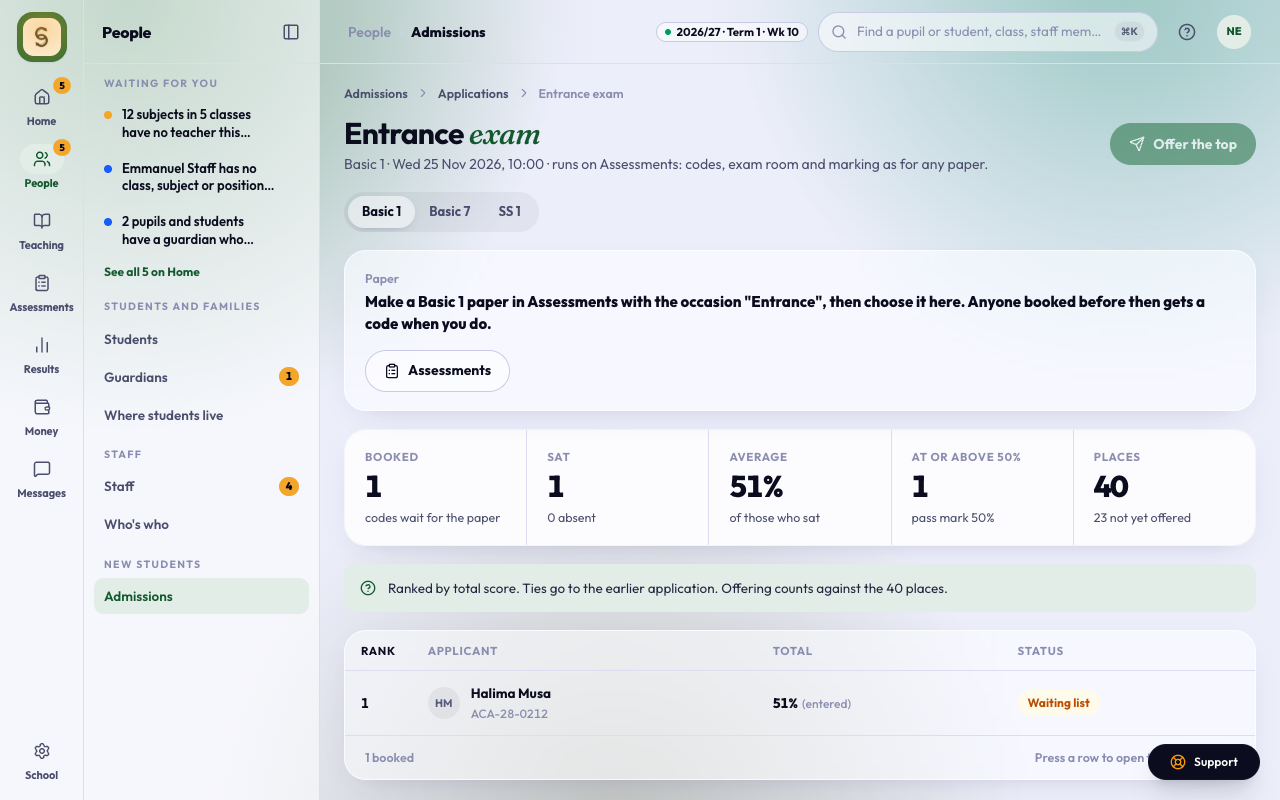
Choose Admissions, then Entrance exam. Pick the class (and the intake, if there’s more than one), then choose its paper under Paper.
Everyone already booked for that class gets a code and PIN by email as soon as you choose it. If you choose a different paper later, booked applicants who haven’t sat yet get new codes for it.
4. Book applicants
In Applications, tick one or more applicants (or open one) and press Book entrance exam.
- If the class’s paper is chosen, each applicant’s main contact gets an email at once with the date, how long the paper is, the applicant’s code and PIN, and where to sit it.
- If it isn’t chosen yet, the Entrance exam page shows them as Waiting for paper, and the code goes out when you choose it.
- Booking after the paper has ended gives no code. Extend the paper’s end time in Assessments, or make a new paper and choose it.
An open application shows its Paper, Code and PIN, and whether it was Emailed.
For applicants without email, or to hand codes out on the day, press Print codes on the Entrance exam page. It prints one slip per booked applicant with their code and PIN.
5. On the day
Applicants sit the paper in the exam room like any student, with their code and PIN (see Sit a test or exam). Open in Assessments takes you to the paper to watch it live, give extra time or allow a retake.
When an applicant submits, their score arrives on their application as a percentage and they move to Exam sat. Anyone who didn’t submit by the time the paper ended shows as Absent.
6. Paper exams and corrections
If an applicant sat the exam on paper, or a mark needs correcting, open their application. Under Entrance exam, type the percentage and press Save score.
A score typed by staff counts over the exam room’s. Clear goes back to the exam room’s score, if there is one.
7. Rank and offer
The Entrance exam page shows how many were booked, the average (with each subject’s when the paper has several), how many are at or above the pass mark, and the places left. Below that, everyone is listed by score, with their rank. Applicants under the pass mark show Below pass mark.
- Offer the top N offers a place to the highest scorers who passed and haven’t been offered yet, up to the places left.
- For anyone else, open their application and choose Offer a place, Waiting list or Decline.
Offers, acceptance and enrolment then work as in Review applications and enrol new students.