This article is for students and candidates.
Sign in
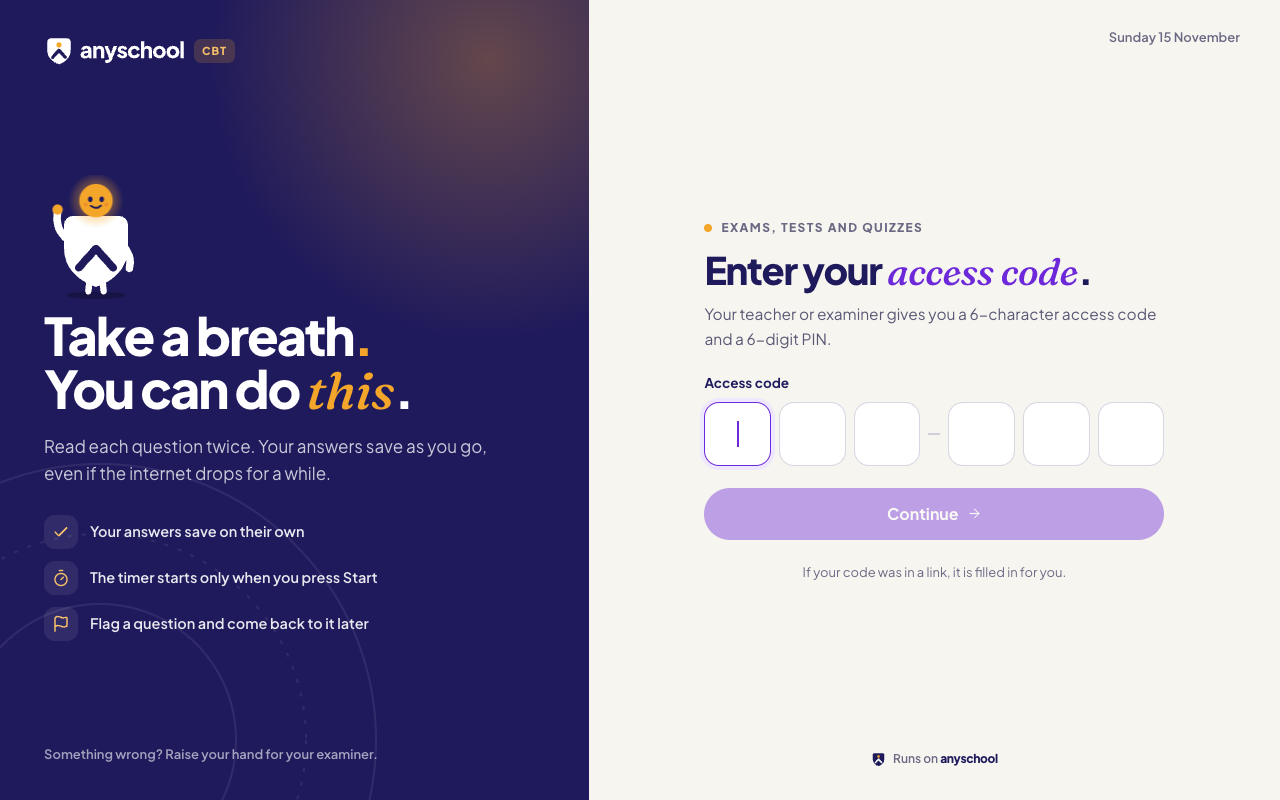
- Open the exam link your school gave you. It starts with cbt.anyschool.ng, or go to your school’s address and add /cbt (for example, kadwel.anyschool.ng/cbt).
- Type your 6-character access code, then your 6-digit PIN.
- Press Continue.
If the link already has your code, it’s filled in for you. If you were already in the middle of the test, you go straight back to it.
You can sign in up to an hour before the test starts. If it doesn’t let you in, the message says why:
- Not open yet: it gives the start time in your own time. Come back then.
- Already used: you’ve submitted, or the code was used on another device. Ask your examiner. If your school has released your result, the message says so instead and View your result opens it.
- Expired or closed: the code or the test’s time has run out. Ask your examiner for a new code.
- Invalid access code or PIN: check both and type them again.
Before you start
- Your details: you may be asked to confirm your name and email.
- Camera: if the test uses the camera, press Enable Camera. Only you should be in view.
- Screen: use one screen only. Unplug any second monitor, then press Re-check.
- Share your screen: some papers need your whole screen shared. Press Share my screen and pick your screen, not a window or tab. Nothing is recorded. On a phone or tablet you won’t be asked.
- Agreement: tick the box to agree to the rules.
Read the rules: full screen, the timer, and that copying and pasting are switched off.
Is this you? Your school may show your passport photo (or your initials), your full name and your student number just above the rules. Show it to your invigilator. If it isn’t you, press Not you? Sign out and sign in with your own code. When you go back to a test you already started, it isn’t shown again.
Then press Start Assessment. If it’s not time yet, you’ll see a countdown.
See your exams
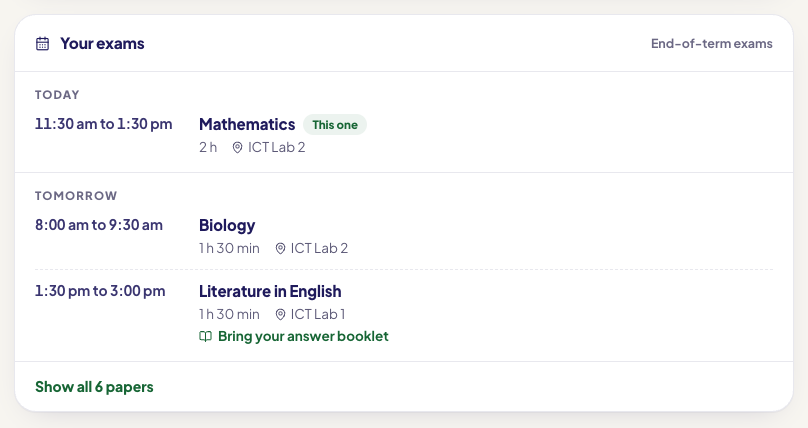
When your school publishes its exam timetable, Your exams shows under the rules: the papers you sit, day by day from today, each with its time, length and room. This one marks the paper you’re about to start, and Done the ones you’ve submitted. A paper that says Bring your answer booklet has questions you answer on paper. A paper that says On paper, in your classroom is written entirely on paper in your classroom, not in the CBT app. If your class sits a paper in batches, it shows your batch, such as Batch 2 of 3, and your batch’s time. You can start only when your batch starts. Press Show all to see every paper. If a paper moves, Your exams shows its new time.
Answer the questions
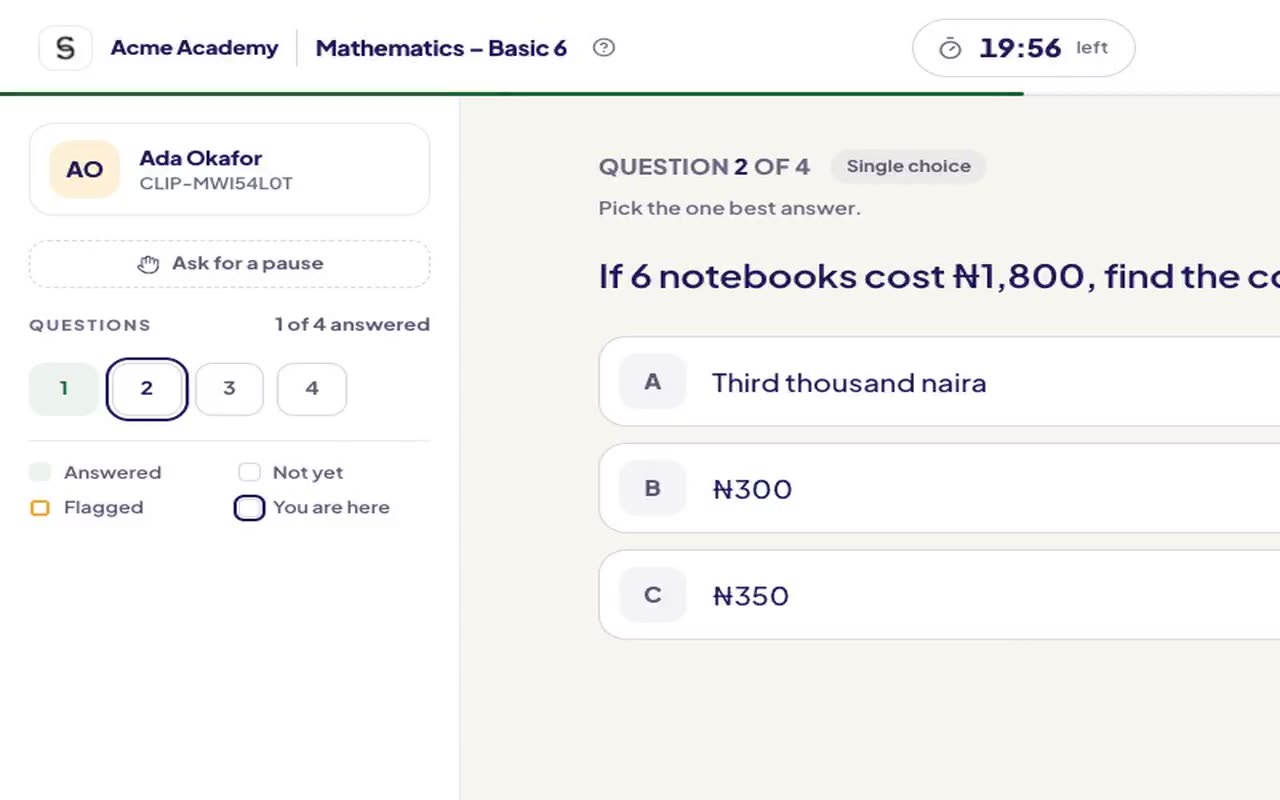
- The top shows the question number and how much time is left.
- Move with Next Question and Previous, or the ← and → keys.
- The Question Palette shows which questions are answered, unanswered and flagged. Tap a number to jump to it.
- Not sure? Press Flag for Review (or the F key) and come back later.
Bigger text, high contrast and the keyboard
Press Display at the top of the test to make the question and its answers Large or Larger, or to turn on High contrast (black text on white, with thick outlines). It’s only for you, it stays through a reload, and it goes back to normal when you leave the test.
You can sit the whole test without a mouse:
- A, B, C… (or 1, 2, 3…) choose an answer.
- F flags the question, and ← and → move between questions.
- Tab moves between buttons, the question numbers included, and Enter or Space presses them.
- Escape closes a window such as Review and finish.
Your answers save as you go. If the internet drops, keep going: your answers are sent when it comes back.
Stay on the test
Stay in full screen and don’t switch tabs or windows. Each time you leave, a warning is recorded. Your school may end your paper after a number of warnings. If that happens, your answers are kept: speak to your examiner, who can let you back in.
If the paper shares your screen, keep it shared until you submit. If it stops, the paper waits until you press Share my screen again, and your examiner is told. The timer keeps running.
On a tablet (an iPad or Android tablet, held either way), scroll as much as you need. If the screen leaves full screen by itself, tap Return to full screen: this isn’t a warning, though it is noted for your examiner. Switching to another app or tab still counts as a warning. If your tablet’s browser can’t go full screen at all, the test runs in the normal window: keep that tab open until you submit.
If something goes wrong, such as a power cut or feeling unwell, press Ask for a pause. Your examiner can pause the timer.
Submit
- On the last question, press Review & Finish.
- Check the Unanswered and Flagged questions. Press Jump to first to go to them.
- Press Yes, Submit Now.
Once you submit, you can’t go back. When the time runs out, the test submits itself.
After you submit
Depending on your school, you may see your score straight away. If the test has essay or coding questions, the score is provisional until a teacher marks them.
Your school may also email your results. If it has already released yours, View your result opens it right away. If not, and your school puts results online, sign in again later with the same code and PIN: once the result is released, you’ll see View your result instead of the sign-in form. After an exam, the page also tells you your next paper, or that it was your last. Press Exit when you’re done.