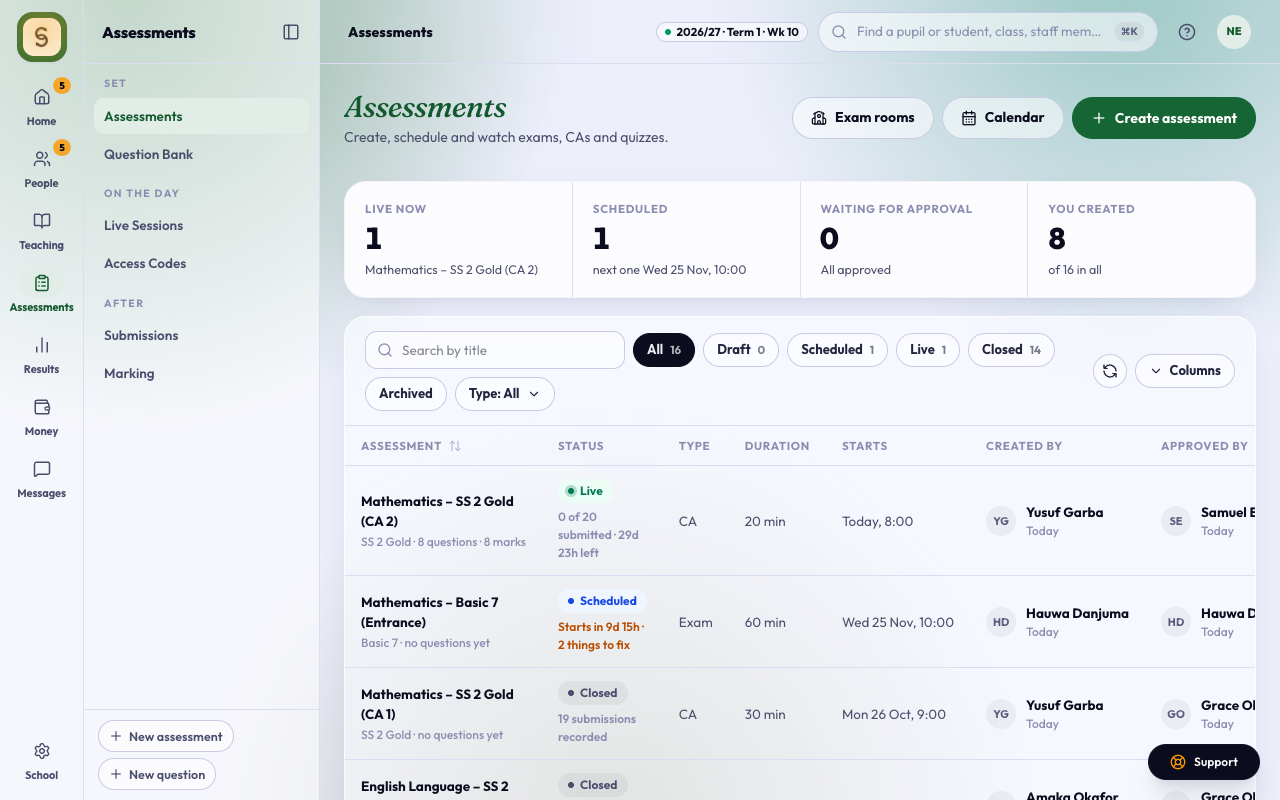
You need the create assessments duty. Choose the Assessments space and press Create assessment. The list shows each assessment as Draft, Scheduled, Live or Closed, with the one thing that moves it on underneath, such as what to fix or when it starts.
Your work is kept on this device while you go. Start again clears it. Move between the steps with Next step and Previous. The title builds itself from what you choose, and Before it can be approved on the right shows what is still missing.
1. Details
- Choose Continuous assessment, Examination or Quiz. Then choose which CA, or which exam.
- Under Which exam, a line says where its scores go. Only the End-of-term exam fills the report sheet’s Exam column; mock, promotion and resit scores stay off report sheets.
- A Mock Exam is for the classes that sit an external exam: Basic 5 and 6 (Common Entrance), Basic 9 (BECE) and SS 3 (WASSCE or NECO). Pick what it is Preparing for. For any other class you’re told it sits no external exam, with a link to switch to End-of-term exam.
- For an admission test, choose Examination, then Entrance Exam. It needs no term; see Run an entrance exam.
- Fill in the Duration (minutes), Class, Subject, Term and Session.
- Optional: Topics covered, Instructions, and a Note after submission that students see when they finish.
For a CA test or an end-of-term exam, a line under the class, subject and term says which report column it will fill, for example Fills: Mid-Term Report online test (out of 20) and End of Term Report 1st CA (out of 20), JSS 2 Gold. It changes as you change the class, subject, term, session, CA or Practice run. If the test won’t fill any report sheet, the line says why, such as:
- the End of Term Report has no CA 3 column: pick a CA the report has, or ask your admin to add the column;
- the Mid-Term Report reads CA 1 only;
- practice tests don’t count;
- no report has been started for 1st Term 2026/2027 yet (it will count once one is): nothing to fix, the scores go on once your school starts the term’s report sheets.
A saved test that isn’t approved yet still fills its column; the line says (waiting for approval).
2. Schedule and settings
- If your school uses the assessment timetable, a CA test, mid-term test, exam or mock has When it sits instead: pick the week it sits in. You don’t set a time. Whoever draws up the timetable places each paper on a day and sitting, so no class has two papers at once, and you’ll see its time here once the timetable is published. A quiz is done at home, so you still pick when it runs (below). Until the school sets that kind of week for the term, you pick when the paper runs as below, and a note links to Sessions and terms; the paper can be pulled into the week later. See Sessions and terms.
- A paper that sits in a week also asks Where it’s written. Choose On the computer for a CBT paper, or On paper for a paper students write in their classroom, such as Technical Drawing or a practical. A paper on paper has no questions or settings here. It still goes on the exam timetable, so no class has it at the same time as a CBT paper, and students see it on their timetable. The CBT app never opens it and it has no sign-in codes. After marking the scripts, type the marks on Scores.
- Otherwise, When it runs asks three things: the day it Opens on, From (Morning 8:00 or Afternoon 1:00, and Evening 5:00 for a quiz done at home) and how long it Stays open for (that day, 3 days or 1 week; a quiz can also stay open 2 weeks). A paper sat in school closes at 3:00 pm on its last day, a quiz at 9:00 pm. The line underneath says exactly when it opens and closes. Once a student starts, they get the time allowed, and anything still open at the end is submitted automatically.
- For an odd time, such as a make-up test at 2:30, press Set exact times instead and set the Start and End. No test can stay open more than 14 days. A start before 7:00 am, a start after 6:00 pm (except a quiz done at home) or an end after 6:00 pm is flagged in Before it can be approved: it’s usually AM and PM swapped. A test saved earlier with its own times opens on exact times, so nothing changes unless you change it.
- A test runs inside its term: from the term’s first day to 11:59 PM three days before the term ends, which leaves time for marking and report sheets. Days outside that are greyed out, and so is any length that would run past it. See Sessions and terms.
- Full screen is always on: every paper runs in full screen, and leaving it is a warning (on a tablet it is only noted).
- Switch on what you need. You only see the switches your school has:
- Camera checks: the camera checks the student is there, and alone, before and during the paper.
- Require screen sharing: for high-security papers. Students share their whole screen before they start, and can’t start if they refuse. If a student stops sharing, the paper waits until they share again, and it shows on Live Sessions. Nothing of the screen is recorded. Phones and tablets can’t share a screen, so there the paper runs in full screen only. Your school needs Screen sharing turned on by AnySchool.
- Only in exam rooms: students can sign in only in your CBT centre, on its network or an enrolled computer. Set those up first; see Keep a paper to your CBT centre. Your school needs Exam rooms turned on by AnySchool.
- Mix the question order
- Mix the options
- Read aloud: students can listen to each question and its options. Questions are read in your school’s voice, female unless someone who manages settings picks male in Settings › Academic set-up › Read-aloud voice. Changing it affects new and edited questions; the rest keep their voice. If your school doesn’t have the AnySchool voice, each student’s device reads the test in its own voice, and there’s no voice to choose. If your school has Follow the words, each word lights up as it’s said, and students can pause, change the speed or tap a word to hear it from there. With Follow the words, AnySchool also listens to each clip when it’s made: one that skips or repeats words of the question is made again, up to twice.
- Show results straight away
- End the paper after warnings blocks a student after 3, 5 or 10 warnings for leaving full screen or switching tabs. Choose Never to only record the warnings.
3. Questions and marks
For a paper written on paper, this step says what happens instead, and there are no questions to add.
- Set the Target total.
- Add questions from the Question bank (search and filter by class and subject), or press Pick questions under Pick for me and say how many.
- Type the marks for each essay, as on your marking guide. Essays have no default mark. To give them all the same, type it beside Give each essay and press Set.
- If the marks don’t add up to the target, press Spread marks. The essays keep their marks and the rest of the target is shared among the other questions.
The summary above the list shows the paper in two parts, Objective and Essays, with the marks for each and the total. If an essay is worth only 1 mark, you’re asked to set its marks or tick Yes, 1 mark each is right before you go on.
To add questions to the bank first, see Add questions.
4. Who sits it
Students come from this session’s class lists: pick the class, then the arm, then tick the names. Choose who is sitting it, and whether results and report sheets are emailed to parents.
Press Create assessment. If it looks like one you already have, you’ll be asked to go back or save anyway.
Approve it and give out codes
Someone with the approve duty opens the assessment’s Questions and presses Approve Assessment. This creates an access code and PIN for each student.
If anything still looks unfinished, Before you approve lists it above the button: essays worth only 1 mark, a start before 7:00 am or after 6:00 pm, or an end after 6:00 pm, a test open for more than 14 days or after the term ends, or a mock exam (its scores stay off report sheets). Fix it in the set-up, or tick that it’s right; the assessment can’t be approved until each one is done. Home’s Needs your attention also shows a test starting this week whose essays are still at 1 mark, and an assessment waiting for approval moves up the list three days before it starts. When someone who approves creates an assessment with one of these, it is saved but waits for approval until they fix or confirm it.
Access Codes, in the Assessments space, lists the codes and PINs (click a code or PIN to copy it) and shows which have been used. Print or download gives you a roster with one slip per student, or a spreadsheet, for any approved assessment. Give each student theirs, or let the emails do it.
Tell students where to go
Every assessment’s page (press its name in the list) has a Where students sit this test card, and Access Codes has the same card for every test, with your school’s test address, for example cbt.anyschool.ng/acme. Students type it into a browser on a computer, then their code and PIN. Phones can’t sit tests.
- Copy address copies it, to paste anywhere.
- Share on WhatsApp opens WhatsApp with a message ready for the class group: the test, when it opens and the address.
- Show on the projector shows the address large across the screen, for the computer lab. Press Esc to close it.
Printed code slips carry the address too: once at the top of each page and on every slip, so a student with only their slip knows where to go.
Want to try the test yourself? Use Preview as a student on the same card. It uses no student’s code and saves nothing. Don’t use a student’s code to try a test: each code works once, so that student would need a retake.
Sitting it in the computer lab? Ask whoever looks after the lab to turn off developer tools on lab computers before exam day.
Live Sessions shows every student sitting an assessment: writing, disconnected, offline with answers saved, blocked or submitted, how many questions they have answered and what has been flagged. Offline, answers saved means the student’s network dropped but they are still working: their answers wait on the computer and the test sends itself when the connection comes back, even after the test has closed, as long as they finished in time. Their activity log says when it arrived and whether any answers changed since the last save. If it can’t be sent in time, use Submit Saved Answers from the row. Pick the assessment at the top; the list refreshes every 30 seconds. Use the ⋯ on a row to block or unblock a student, give extra time, or allow a retake.
After it starts
Once students start, the questions, marks, type and duration are locked. You can still extend the end time, add students and change the instructions. To change more, use Duplicate as a new version.
Use Preview as a student in the row menu to take it as a student would. Nothing is saved.
Watch it while it runs
Press an assessment’s name in the list to open its page and see how it is going right now. The page shows who is sitting it, who is writing, who has submitted and who needs a look: anyone blocked, disconnected, asking for a pause or flagged for leaving the paper. It updates every 30 seconds while the page is open.
Press a student’s flags to see what was recorded and, once they have submitted, to decide: Cleared, Deduct marks or Disqualify. A reason is required to deduct marks or disqualify, and the marked score is kept. The ⋯ on a row gives their activity log, time and pause, block, and a retake. Print activity logs prints everyone’s log in one go, and Preview takes the paper as a student would.
See how the class did
Once students hand in, the same page shows Class results: the average, the highest and lowest scores, how spread out the scores are, and how many students fell in each 10-point band. Exams also show a pass rate. A CA or quiz has no pass or fail of its own, so it shows none. Disqualified students aren’t counted.
Question analysis goes through each objective question:
- Right: the share of the marks the class earned. Under 30% is marked Too hard, and 90% or more Very easy.
- Separates: the top third’s share right minus the bottom third’s. 0.3 or more is good. Under 0.2 means the question didn’t tell stronger students from weaker ones, and a negative value means weaker students did better. It shows from six students.
- Most chosen wrong: the wrong answer most students picked, and how many picked it.
- May be mis-keyed: most of the top third chose the same answer the key marks wrong. Check the answer key before the scores go on report sheets.
Use Need a look to show only the questions with a note. Essay and coding questions are marked by hand, so they aren’t analysed.