A broadsheet shows every score at a glance: a whole class across its subjects, or one subject across every class.
Who can see them
- Admins see every class.
- Exams officers see every class, or only their section’s classes when they hold the position for one section (for example Secondary).
- Teachers see the classes and subjects they teach, once the term’s report sheets are open.
If it says No broadsheets yet, your admin hasn’t opened this term’s report sheets. See Prepare and release report sheets.
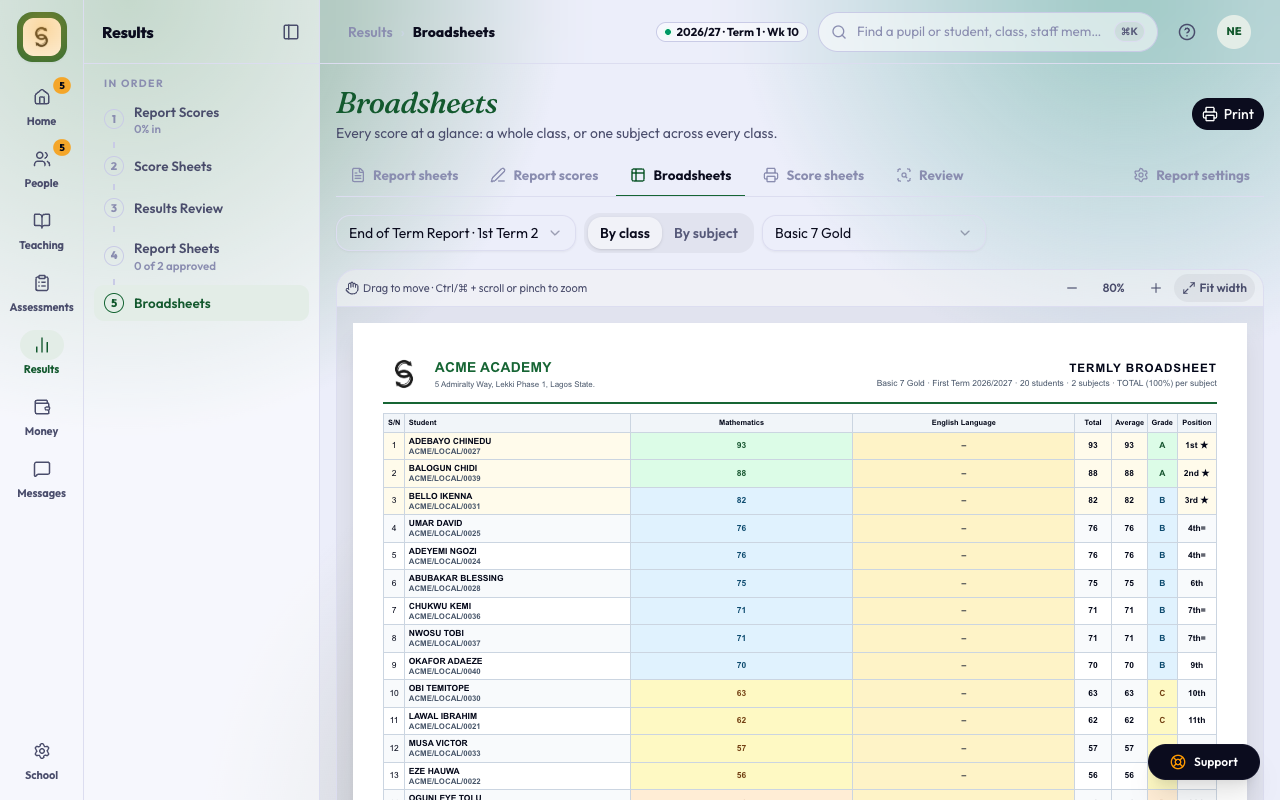
View a broadsheet
- Open Broadsheets in the Results space.
- If there’s more than one report this term, pick it.
- Choose By class and pick a class, or By subject and pick a subject.
The two views show different columns:
- By class: each subject, then Total, Average, Year avg, Grade, Position and Year position.
- By subject: students ranked with their total and grade, and the class’s average, highest and lowest.
On a phone, each student is one row: position, name, average and grade. Tap a student to see every subject’s score; a missing one says Missing. By subject lists each arm in rank order; tap a student for their CA. Print still gives the full sheet.
Print it
Press Print. The broadsheet opens in a new tab, on A4 landscape. Press Print there.
To keep a PDF, choose Save as PDF as the printer.