Results Review shows the whole term’s results on one page, with the problems first, so the Principal and Vice Principals can check them before report sheets go out.
Who can see it
- The owner, the Principal and exam officers see every class.
- A Vice Principal or Head of Section sees only the classes in their section.
It appears as a tab on Report Sheets once AnyHQ has turned Results Review on for your school. The page only reads results: scores are changed in Report Sheets. Every time someone opens it, or a student’s sheet, it’s written in the activity log.
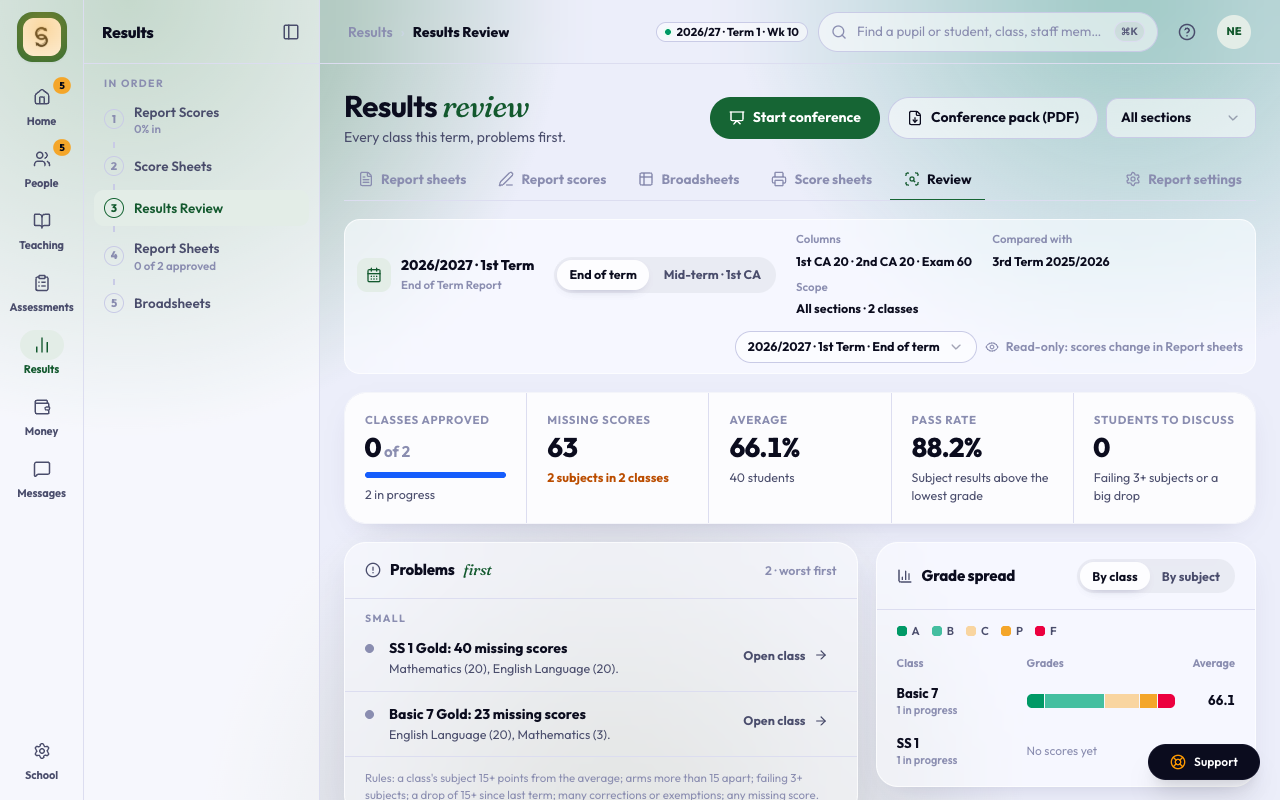
Check the term
- Open Results Review in the Results space.
- If the term has a mid-term and an end-of-term report, pick one with the tabs in the strip at the top. Other terms opens an earlier term’s report.
- Read Problems first. It puts what needs a second look in three groups (Serious, Worth a look, Small): a subject whose average is far from the others, arms of one class far apart, big drops since last term, many corrections, and missing scores. On end-of-term reports with a grading scale, it also lists students failing several subjects. A mid-term has no pass or fail, so nobody is counted as failing.
- Choose a class in Grade spread, or a problem’s button, then an arm, then a student. Their full report sheet opens beside the list; use Previous and Next (or ← and →) to move through the class.
Run a results conference
- Press Start conference and choose a class arm. Press the full-screen button to share it on a projector.
- Go through the students the page has flagged. For each one, press Record decision and tick what was agreed: probation, extra lessons, call the parents, or something else, with a note.
- If a subject’s scores look wrong, press Send back for re-check, choose the subject’s teacher or the class teacher, and say why. They get your note by email and see it at the top of the class or their scores page until it’s fixed.
- When the arm is right, press Approve with the arm’s name and confirm. An arm can be approved once its class teacher has marked it ready, and its results lock 7 days later.
Print the conference pack
Press Conference pack (PDF). You get one PDF with the problems, the students to discuss with any decisions already recorded, and every class’s broadsheet, on A4 landscape, ready to print for the meeting. A Vice Principal’s pack has only their section.
Approving and printing report sheets is the same as before. See Prepare and release report sheets.
Apply a corrected answer
When a teacher corrects a right answer on a question that students have sat, a test whose results are approved does not change by itself. If you approve results, a note at the top of Results Review says how many corrected answers are waiting. Press Review, check how many scores change, and press Apply to this test. Scores, report sheets and positions update together and the sheets are sealed again. The parents and guardians of the students whose score changed get a short email saying which test, the score before and now, and why; nobody else is emailed, and nobody twice. Each note is written in the activity log. Leave as it is keeps the old scores and closes the change. Either way it is written in the activity log.