Open this term’s report sheets (admins)
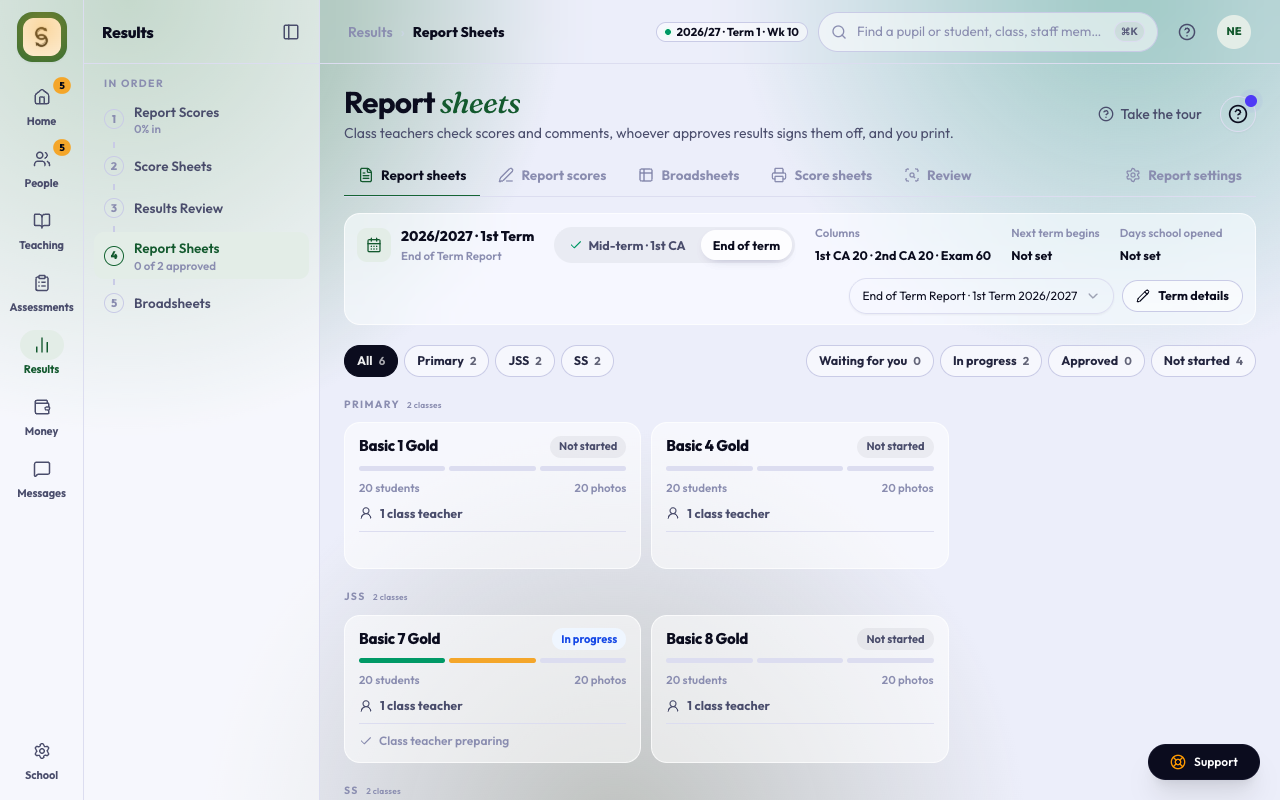
Only admins and exam officers open the report sheets. Everyone else sees Your admin or exam officer opens this term’s report sheets.
- Make sure the current session and term are set on Sessions and terms (or in Settings › Academic set-up if your school doesn’t have School Management). See Set up sessions and terms.
- Choose Report Sheets in the Results space.
- Choose Mid-term report (and which CA it shows) or End-of-term report (and the columns on the sheet).
- Press Open the mid-term report sheets or Open the end-of-term report sheets.
If some subjects have no teacher this session, a box lists them class by class first. Assign now takes you to Staff › Teaching to give them out. Continue anyway opens the sheets as usual: the class teacher enters those subjects on the class’s Scores step.
To add the end-of-term report after a mid-term, use the + End-of-term report tab.
This term’s details
Admins fill in what every sheet prints: the Title, Days school opened and School resumes on. In the 2nd and 3rd terms, you can also Show the year so far.
Here you also Open or Lock each score column. The exam starts locked. Sheets can’t be approved until every mark is in.
Each class, step by step (class teachers)
Open your class from its card. The steps are:
- Pupils or Students: check who is in the class.
- Scores: see which subjects are complete. A subject marked No subject teacher: you enter it here has nobody to teach it this session, so you type its scores yourself. A yellow note lists any of this term’s tests for the class that won’t fill a report column, with the reason and an Edit test link.
- Ratings & attendance: fill in ratings, if your school uses them.
- Comments:
- Suggest the missing suggests a comment for each student from their own results. Suggest a comment does one student.
- Edit any comment you want to change. A comment you edit locks itself, so suggesting again won’t touch it.
- Suggestions are written by Any Intelligence, and a short line says so. Read each one before you approve the class: it can make mistakes. The line never prints and parents never see it.
- Lock all keeps every comment as it is.
- Review and approve: fix everything listed under Report sheet checks, then press Send for approval. Whoever approves is emailed. If a subject teacher hasn’t submitted yet, you’re asked whether to wait or send anyway.
Each step opens when the one before it is done.
Approve (principal or head)
Open the class and press Approve and lock, then confirm. The dialog says until when you can still reopen it. The sheets get the school’s stamp, signature and QR code, and the class is locked.
Approving also seals each sheet’s results. Anyone who scans the QR code opens its check at verify.anyschool.ng and sees whether the sheet is genuine, and if the results in AnySchool have changed since approval, the page says so and asks them to get the current sheet from the school.
If you see a problem, use Back to editing or Reopen for changes.
Publish an end-of-term class
If AnySchool has turned on the report fee for your school, an end-of-term class has one more step after Approve and lock: Publish. Mid-term reports don’t; approving them makes them final, as before.
- Nothing prints before it’s published. Until then the sheets on screen show NOT PUBLISHED, with no stamp, signature or QR code, and All sheets only prints samples, with made-up names in place of the students’.
- Hold results first. Whoever manages fees (the Bursar or Accountant), or approves results, opens Report sheets › Hold results. Each class lists its students; if your school records fees in AnySchool, each shows what they owe, largest first, and Hold everyone owing more than ₦… holds them in one go. If you keep fees outside AnySchool, tick students from your own records, or Download the list to work from. Add a reason if you like; only staff see it. Students held for school fees on Debtors show as held; release those on Debtors. Holding never charges or tells the family.
- Publish (on the class’s Review step, for whoever approves results) says how many are held and by whom, and asks you to confirm. You don’t pick holds there; Change holds goes to Hold results.
- Once published, each result is ready to open, like a result checker card: it opens once its report fee is paid or waived. A held result stays closed until it’s released.
- Choose how each result opens. After publishing, the class’s Review step shows how many are ready to open and three choices for the whole class; Report sheets › Report fees does the same for students you tick:
- Send to parents to pay emails each guardian once, naming each of their wards, the fee and a Pay to open link. Only then can a parent pay, here or in the parent portal. Sending again is a reminder.
- Pay for them pays online in one payment (see below).
- Ask AnySchool to waive asks with one tap (scholarship students, staff children, orphans or hardship, already in the school fees, or something else) and an optional note only AnySchool reads. AnySchool responds soon, and you’re emailed either way. Parents can’t pay for those students while you wait; if AnySchool declines, they’re back for you to send or pay.
- Hold or release a student on Hold results at any time, before or after publishing. A fee already paid stays paid.
- Before you publish, the Publish card says that an end-of-term result opens once its report fee is paid or waived, that mid-term results were free, and your school’s price for each level. If a student has no parent on file, it says so too.
- A student with no parent on file can’t be sent a fee, so their locked sheet reads No parent on file and offers Add a parent (their Guardians tab), Pay for this student (Report fees, with them already chosen) and Ask for a waiver. On Report fees, No parent on file counts them and Choose all of them picks them for one payment. Send to parents skips them and says how many.
- Reopen for changes takes a class back to unpublished: its sheets stop printing until it’s approved and published again. Fees already paid or waived stay that way.
A class locks for good 7 days after it’s approved. After that, unlocking needs two of the owner, the Principal and the Vice Principal to press Agree to unlock. Anyone who can agree starts with Ask to unlock and writes what needs to change.
Print and send to parents
- All sheets asks what to print: the class and report, then Every student’s sheet, One student, or (admins) a sample of the top, middle and lowest or of every student, marked SAMPLE. Open print page opens it in a new tab. Print this sheet prints one student straight away. Before approval, sheets carry a light DRAFT mark. An end-of-term class at a school with the report fee prints only once it’s published (see above).
- Only open results print. A result your school holds (on Hold results, or for unpaid school fees) or whose report fee isn’t paid or waived yet doesn’t print. After publishing, All sheets offers Every open sheet and says how many are left out and why. The print page still shows every sheet in class order: the locked ones are blurred, with what to do about each (Send to the parent, Remind the parent, pay it on Report fees, or Open Hold results), and the chips at the top show All, Open, Waiting for the fee or Held by school. Print prints only the open sheets.
- Held and unpaid sheets are marked. In Review, a held sheet reads HELD and one waiting for its report fee reads NOT OPEN YET, with no stamp or QR code. Broadsheets, the results conference pack and score sheets are for staff: each page says Internal · not a report sheet.
- Subject teachers’ comments on the back. If your school has subject teacher comments, each end-of-term sheet gets a second page with every subject teacher’s comment and the grade. Print on both sides: the pages come out front, back, front, back, so a duplex printer pairs them. No duplex printer? Choose Fronts only. A subject with no comment keeps empty lines for the teacher to write on. A language teacher’s comment in French, Hausa, Yoruba, Igbo or Arabic shows its English meaning in small type under it. The emailed PDF has the back as page 2, and parents see the same comments in the parent app. Admins can turn the back page off, or pick its look (Stamp cards, Notes on a board or Simple cards), under Results › Report settings › What each sheet shows. Mid-term sheets are one page. Every preview of an end-of-term sheet (the Review step, the student panel in Results review, the settings preview, the template cards and the sample sheets) has a Front · Back switch, and the sheet turns over like a page: click the switch, drag the sheet sideways with the mouse, or swipe on a phone, so you can read the comments before you print; a subject with no comment yet shows its empty lines, and the toolbar counts them.
- Grading scales by section. Under Results › Report settings › Scoring and grades, pick Nursery & primary, Junior secondary or Senior secondary to set that section’s grades. Senior secondary can use WAEC’s scale in one click (Use WAEC (A1–F9): A1 75–100 down to F9 0–39); junior secondary and primary usually grade A to F. A section without its own scale uses the Nursery & primary one. The bar under the scale shows any gap or overlap between bands, and a scale with one isn’t saved until it’s fixed. Once a class is approved, its sheets keep the scale they were approved with: changing a scale later reaches that class only if it is reopened and approved again.
- Your sheet’s design. If your school has report sheet templates, admins pick one under Results › Report settings › What each sheet shows: Classic (the usual sheet), Modern (your colour across the top, the photo top-right) or Compact (grades and comments side by side). The results are the same on each, and the printout, the PDF and the parent app all use it. If AnySchool has set your design, it shows a lock; contact us to change it.
- Advanced designs. Under the same card, every school can preview the advanced designs on a made-up student. Press Full size under any design to see the whole sheet at a readable size, and Back to turn it over. Ledger is the first: a ruled header, a mark bar against the class average, and a matching back page with each subject’s grade, the subject teacher’s comment, the class average and the last terms. It is built to be hard to copy: curved lines across the top, a line of tiny type that carries the student’s own details, and a bar that shows the word ORIGINAL only on a photocopy. With Strength and Next step on, each subject on the Ledger back page also shows its two short lines and a small ✓ code. The codes are part of the sheet’s seal: the check page the QR opens lists each subject’s code (never its score or comment), so a family can hold the sheet beside it and see every line match. Tickets numbers every sheet by the student’s place in the class list (No. 0007 / 0028) and shows the average, grade, position and attendance as small medals. Its back page puts a radar of every subject against the class average at the top, then one perforated ticket per subject: the grade, mark and class average on the stub, and the comment, Strength, Next step, last terms and ✓ code beside it. It has the same curved lines, tiny type and copy bar as Ledger. Heritage is formal and centred: a double-ruled frame, a rosette of fine circles behind your crest, your name in spaced capitals and the student’s details set like a certificate. Its back page is a set of letters from the subject teachers in two columns, each opening with a large first letter, with the teacher’s name, the mark against the class average, Strength, Next step, the last terms and the ✓ code. Editorial is modern and light on ink: the student’s name set large with the surname in your colour, a row of headline figures (average, grade, position, subjects at A) and a ribbon down the left edge whose text is the student’s details in tiny type. Its back page sets each subject’s score large beside the teacher’s words, with + what went well, → the next step, the last terms and the ✓ code. Advanced designs are priced; write to support@anyschool.ng and AnySchool switches yours on. The back page needs Subject teacher comments on for your school.
- To email them, admins press Prepare sheets to email, then Send a test to me, then Email report sheets to parents. Emailing can’t be undone.
The report fee: receipts and your statement
If AnySchool has turned on the report fee for your school, each end-of-term result has a fee for the student’s level: families pay for the Report sheet, with performance analysis and insights. Mid-term results are always free. The pricing page lists the price for each level.
- The result waits for its fee. An end-of-term result opens only once its report fee is paid online or waived by AnySchool. Nobody opens a result by hand, and AnySchool never invoices your school. Until then it isn’t emailed and the printout leaves it out. Nobody can pay before the class is published, before your school sends the fee to the parents, or for a student your school is holding. Paying opens the report sheet and its performance analysis and insights together. A result your school holds for unpaid school fees stays held for those first.
- Free results still get insights. A result AnySchool waived, a mid-term result, or one for a level with no report fee shows the headline and strengths, free, with nothing to pay.
- Your school can pay instead of families. On Report sheets, an end-of-term report shows a Report fees card to anyone who manages fees or approves results. Open it to see how many results are cleared, pick students, an arm or the whole school, and pay online in one payment. Your school pays each fee less its own share, plus one Service and Transaction fee. The results open as soon as it’s paid. AnySchool emails you one receipt that lists every student, and each family gets its own receipt saying the school paid. Students whose families have already paid, or whose fee is waived, can’t be picked.
- Every fee gets a receipt from AnySchool. It shows the full price for the student’s level, any discount or waiver on its own line with the reason, and what was paid. A waived fee still gets a receipt, at ₦0, so families see what was given.
- When AnySchool waives a whole class, each family gets its receipt by email and your school gets one statement.
- Your statement lists the term’s results at full price, what was waived or discounted, what families paid, your school’s share (paid to your settlement account if you have one, otherwise credited on the statement) and what AnySchool owes your school, if it has no settlement account. Your school never owes AnySchool on a statement.
Questions about a receipt or statement: write to support@anyschool.ng.