Open your scores
- Choose Report Scores in the Results space.
- If there’s more than one report this term, pick it under Choose a report.
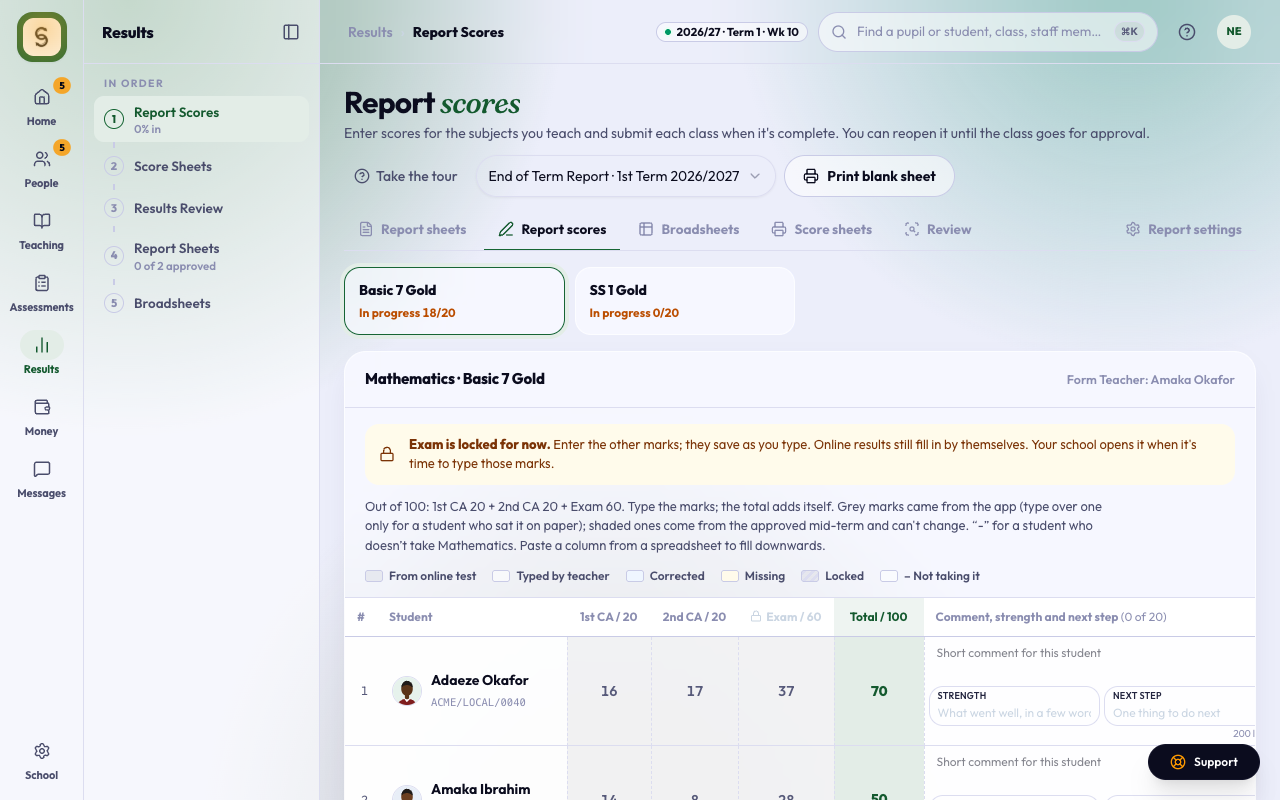
- Pick your subject, then a class. Each class shows how far you’ve got: In progress, Ready to submit, Submitted or Locked: approved.
Your subjects show here once your school has opened the term’s report sheets and you teach a subject this session. If you haven’t been given any subjects yet, the page says so: ask your school’s admin to assign them on Staff › Teaching. An admin who doesn’t teach a subject opens a class’s scores from Report sheets instead. A head of section can also enter and submit scores for every class in her section, and is turned away from classes in other sections.
Give every subject a teacher (admins)
Each teacher sees only the subjects they’ve been given for the session. Give them out on Staff › Teaching. The Subjects with no teacher card at the top lists every subject that a class offers and nobody teaches yet, nursery and primary included. Home reminds you until the list is empty.
- Each subject shows a suggested teacher and why: they set that class’s test this session, they teach the subject in another class at that level, their job title names it, or (in nursery and primary) they’re the class teacher. Press Accept, or Someone else to pick from your staff.
- Accept all suggestions accepts every suggestion in a section at once.
- In nursery and primary, give the specialist subjects (French, Music, ICT) first, then press … takes the rest to give everything left in that class to its class teacher. Each class teacher takes the rest does it for every class at once.
- Not offered here hides a subject that a class doesn’t take on that class’s reports this session, so it stops counting.
Each teacher gets one email that lists their new subjects and classes. Assignments copy forward to the next session.
Who is the class teacher? (admins)
A class teacher sees every parent’s and guardian’s contact, the pickup adults and past results for the class. So a class has one class teacher and at most one assistant, and everyone else who teaches there is a subject teacher.
When a class has more than 2 class teachers this session, Staff › Teaching asks Who is the class teacher? for that class, and Home reminds you until every class has 2 or fewer.
- Choose the Class teacher, and an Assistant class teacher if you want one.
- Check Everyone else. Anyone who entered scores in the class becomes its subject teacher for exactly those subjects. Anyone who entered none comes off the class. You can change any of it: take a subject off, add one, or choose Remove from class.
- Press Confirm. The new subject teachers get an email about their subjects.
A class can’t take a third class teacher. When you add someone to a class that already has a class teacher, AnySchool asks what they do there: Teaches a subject (choose it) or Class teacher too. When the class already has 2, only Teaches a subject is offered: to make them class teacher instead, remove one of the two first.
Type the marks
The columns come from your school’s report settings, each with its maximum, for example CA 1 / 10. The total adds itself.
- Type a mark and press Enter or ↓ to go down the column. The arrow keys move in every direction.
- On a phone each student is a card with a big box for each column. Next on the keyboard moves across the card, then to the next student. The count and Submit class stay at the bottom of the screen.
- Type - for a student who doesn’t take your subject.
- Paste a whole column from a spreadsheet if you kept marks there.
- Marks from online tests show in grey. Type over them to change them.
- Shaded marks come from an approved mid-term and can’t change.
Everything saves as you type. There is no Save button.
Without internet
Keep typing when the signal drops. You see an Offline badge, and each score you type is kept on this device, with Saved on this device, will send under the student’s name. You can close the page: the scores send themselves, in the order you typed them, the next time AnySchool is open with a signal, and it tells you when they have.
The same happens when the internet works but AnySchool can’t reach its server: the line under the top bar says so, and the dot on your picture turns grey.
- Submit class needs the internet, and waits until every kept score has reached the school.
- If someone else, such as the class teacher, changed the same score while you were offline, nothing is written over. The page shows both marks and you press Keep mine or Keep theirs.
- If the class was submitted or approved meanwhile, the kept scores aren’t saved, and the page says why. Reopen the class, then press Send again, or Discard them.
- Logging out while scores are still on the device warns you first, because logging out deletes them.
A test that fills nothing
If one of this term’s CA tests or exams for your subject and class won’t reach any report sheet, a yellow note above the marks lists it with the reason, for example the End of Term Report has no CA 3 column. Its scores won’t appear here until the test is fixed. Press Edit test to change it (such as the class, term or CA), or type the marks by hand. The note goes once every test lands.
Comments for each student
On end-of-term reports, if your school has subject teacher comments, a Comment column sits beside the marks. Write a line or two about how each student is doing in your subject, up to 200 characters; the count under the box shows what’s left. It saves when you click away.
- ✨ suggests a comment from the student’s mark in your subject, when your school uses AI writing. Read it and change anything before you move on.
- Teach French, Hausa, Yoruba, Igbo or Arabic? If your school has language subject reviews, write your comment as a short line in the language. An English meaning box sits under it, so every parent understands. ✨ fills in both. If you type your own line, add the meaning yourself or leave it empty. The meaning prints in small type under your line.
- Strength and Next step. If your school has them on, two short boxes sit under each comment: what went well, and one thing for the student to do next, up to 60 characters each. ✨ fills them with the comment. They need a comment first, and they go if you remove the comment. Change the comment’s wording and they stay.
- The column heading counts how many students have a comment. The class teacher sees which subjects are finished before sending the class for approval.
- Comments lock with the scores: once you submit, or once the class is approved, reopen them to change a comment.
Mid-term reports have no comment column.
Locked columns
Some columns, usually the exam, start locked. The page names them and says your school opens them when it’s time to type those marks. Your admin opens them under This term’s details on Report Sheets.
Submit each class
When every student has a mark or -, press Submit class.
You can Reopen to edit until the class teacher sends the class for approval. After that, ask the class teacher to reopen it.
Mark the rest as not taking it marks every student without a score as not taking your subject. Use it only for students who don’t offer the subject. A student who was absent should get a score.