Type a question
You need the create questions duty.
- Choose Question Bank in the Assessments space and press Add question.
- Pick the format: Single choice, Multiple choice, True or false, Picture, Fill in, Essay or Coding. Question set is for questions that share a passage, diagram, map, table, case study, poem or source.
- Write the question.
- Write the options and click the letter beside the right answer (for Multiple choice, every right answer). The note button on an option adds a line students see when they review their answers. For True or false, pick True or False; for Fill in, type every answer you will accept.
- Under the line, set the Class, Subject and Topic, and the Difficulty if you like.
- Press Save question, or Save and add another to go straight on to the next one.
What students see sits beside the question on a computer and changes as you type. Listen reads it aloud, and the switch shows or hides the right answer. On a phone, press the eye button at the top to see it. Your draft is saved on this device as you type.
Check a question
If your school has Check question switched on, a Check question button sits under the answers. Press it when you’ve finished writing and Any Intelligence looks at the question and its options. It shows:
- Spelling and grammar fixes, each with the old words crossed out and the new ones beside them. Press Apply on the ones you agree with. Nothing changes until you press it.
- More than one answer could be right, when a second option also fits or none of the marked ones does.
- A note on the wording for the class you chose, so you can see whether it’s too hard.
The check only runs when you press the button, never while you type. Your class, subject and the rest of the form stay as they are, so Save & New works as before. Your browser also underlines misspelt words as you type, in British English.
Import a whole test
You need the import questions duty, and your school must have importing switched on.
- On Questions, press Import questions.
- Set the subject and class in the side panel first. Every question you import gets them, so import one subject at a time.
- Choose how to bring it in:
- Document: a PDF or Word file, up to 20 MB. A scanned PDF works too. For a Google Doc, choose File → Download → PDF.
- Photos: one photo per page, flat and in good light, up to 20 pages.
- Paste: paste the text.
- ChatGPT or spreadsheet: a CSV or Excel file with one question per row, up to 300.
- Press Read questions. Any Intelligence copies the questions, pictures and answers.
- Check every one. Look at Needs attention first. Tap the letter of the right option where the answer is missing. Untick anything you don’t want. If a number is missing (Q3 was not found), add that question by hand.
- Press Add questions to bank. The bank then shows just that import’s questions; Show all questions goes back.
- To use them straight away, go to Add them to an assessment under the note. Each section of the document is one row: pick A new assessment or one that hasn’t started yet for the same subject and class, then press Add. The assessment opens with the questions in, in the document’s order; questions it already has aren’t added twice. Save it as usual.
Any Intelligence copies, but it can misread, so a short line under its work says to check it. Nothing is saved until you add the questions to the bank.
Recent imports lets you remove an import. Questions already used in an assessment stay.
Find and check questions
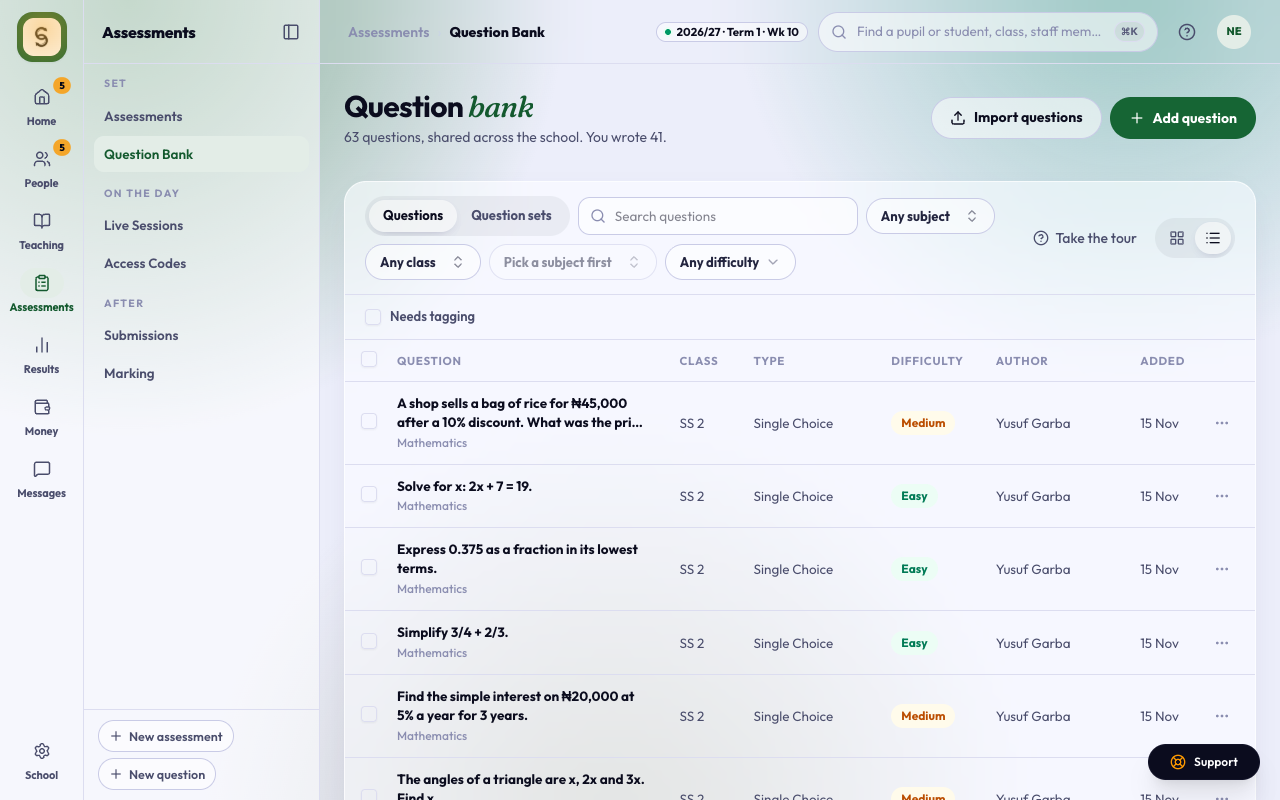
The Question bank lists every question in your school, newest first. Search, or pick a subject, class, topic or difficulty. Tick Needs tagging to see questions with no subject yet, and Answer key to check to see questions where Any Intelligence chose a different answer from the key.
Click a question to see it as a student does, with its right answer, the assessments it’s in and who wrote it. Edit question and Delete are there too. A question that’s in an assessment can’t be deleted.
Question sets (a passage, map or table with its questions) have their own tab.
Correct a right answer after students have sat the question
If a question’s right answer was wrong, open the question, choose the right one and save. When students have already answered it, AnySchool first says how many students in how many tests it reaches and what happens to each test:
- A test whose class results are not approved yet is re-marked as soon as you save. Totals, grades and positions follow.
- A test whose class results are approved keeps its scores. The change waits on Results review for someone who approves results to apply it in one step, and report sheets are sealed again with the new scores. The parents and guardians of the students whose score changed get a short email, once.
- Fixing wording, option text or a picture never changes a score. Past results keep the question as the student saw it.
- Essay and code answers are marked by hand and are never re-marked.
If a question was faulty (two options were right, a picture was missing), open it and press This question was faulty. Say why, and everyone who sat a test with it gets its full mark, with the same approval step for approved tests. Every change is in the activity log: who, which question, the old and new answer and how many scores changed.