A paper marked Only in exam rooms can be sat only in your CBT centre. Anywhere else, the student’s code and PIN are refused before the clock starts, with This paper can only be taken in the school’s CBT centre. Your school needs Exam rooms turned on by AnySchool.
Exam rooms are for the Exams officer and ICT: you need the duty to manage access codes, or to edit every assessment, for the whole school or for a section. Open Assessments or Access codes and press Exam rooms.
There are two ways to say where your CBT centre is. Use either, or both: a student passes if either one matches.
Add the CBT centre’s network
This works when the centre has its own internet connection, such as a router or a fixed line. A mobile hotspot’s address changes, so don’t rely on it; enrol the computers instead.
- Sit at a computer in the CBT centre and open Exam rooms.
- Under Networks, the page shows the address you’re on now. Press Use this address, give it a name such as CBT centre, and press Add network.
- If your internet provider gave you a range, type it instead, for example
41.58.10.0/24.
Remove takes a network off the list.
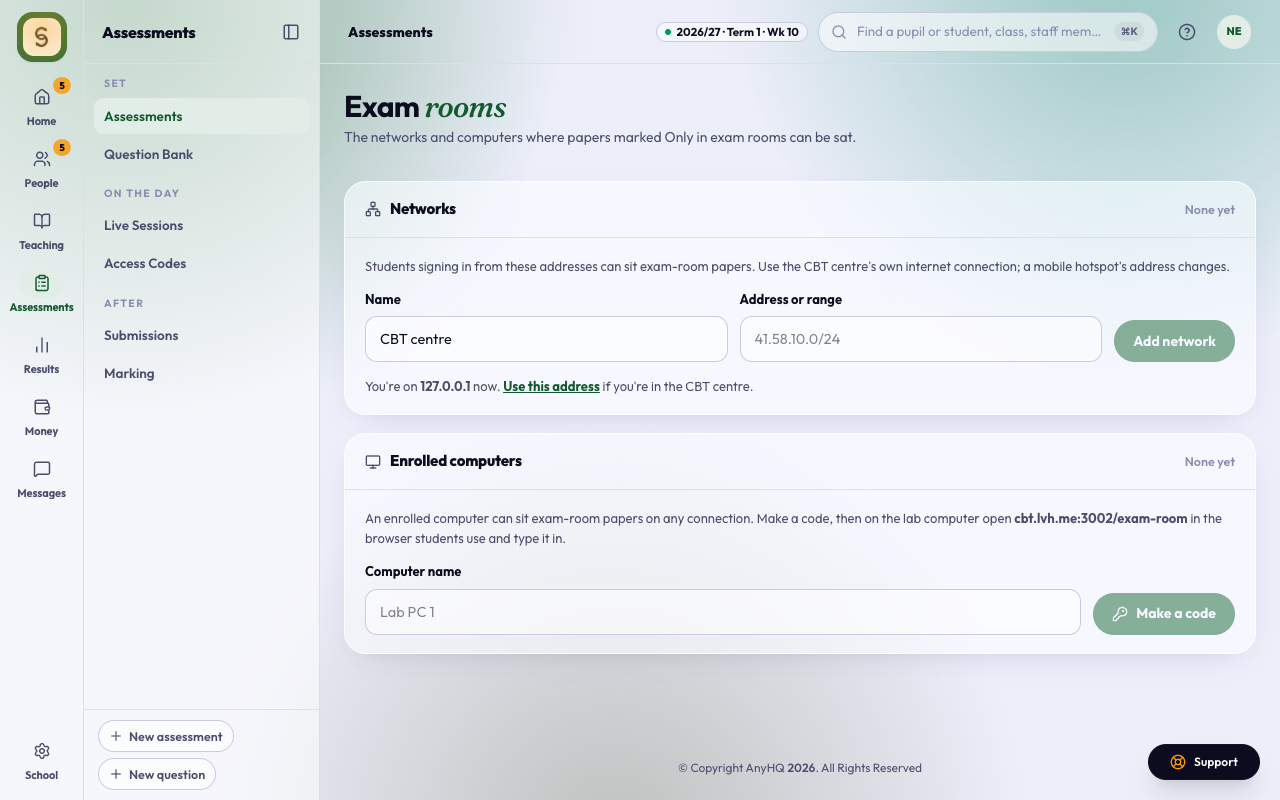
Enrol the lab computers
An enrolled computer can sit exam-room papers on any connection.
- Under Enrolled computers, type a name such as Lab PC 1 and press Make a code. The code works once, for 30 minutes.
- On the lab computer, open the address shown on the page (cbt.anyschool.ng/exam-room) in the browser students use, type the code and press Enrol this computer.
- Do it once for each computer. Clearing the browser’s cookies or using another browser undoes it; enrol it again with a new code.
Revoke stops a computer, for example one that has left the lab. It stays on the list as Revoked.
Mark a paper
In Create assessment, step 2. Schedule and settings, switch on Only in exam rooms. Students who try to sign in somewhere else are told to come to the CBT centre; nothing is started and no time is used.
While you’re setting up the lab, also turn off developer tools on lab computers.