The exam timetable puts every paper of an assessment week in a sitting, so no student sits two papers at once. It’s built by whoever holds the exams duty: each section’s Exam Officer, the Vice Principals and the ICT officers, who look after the CBT rooms. The Principal can too. Everyone on staff sees it once it’s published. Your school needs the assessment timetable turned on by AnySchool.
See the exam timetable
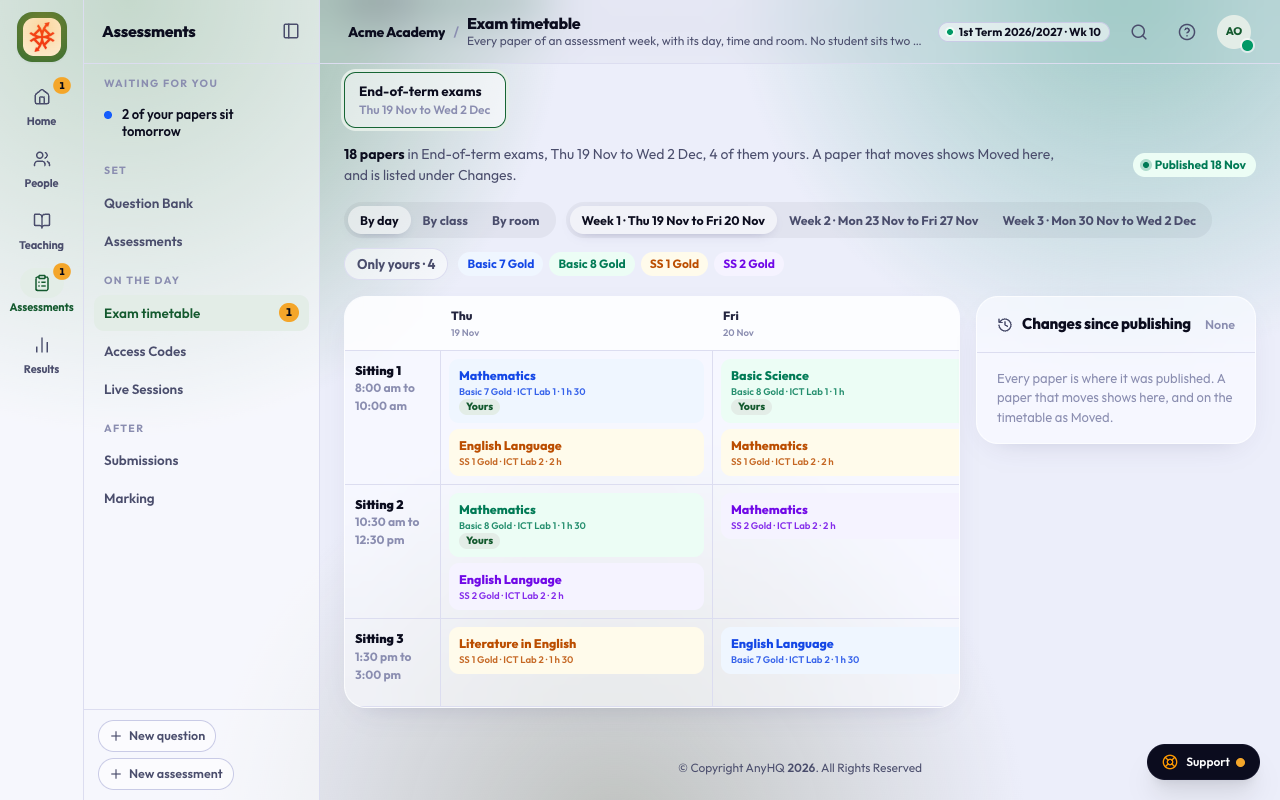
Open Assessments and press Exam timetable. You see each published week: every paper with its day, time, room and length. Until the exams duty publishes a week, it isn’t shown.
- The papers you set are marked Yours. Press Only yours to see just them, and again to see the whole timetable.
- Use By day, By class or By room to read it the way you need.
- A paper that moves after publishing shows Moved, and Changes since publishing says where it was and where it went.
The day before your papers sit, Home tells you which ones, with their times and rooms. On a Friday it looks ahead to Monday.
Print the timetable
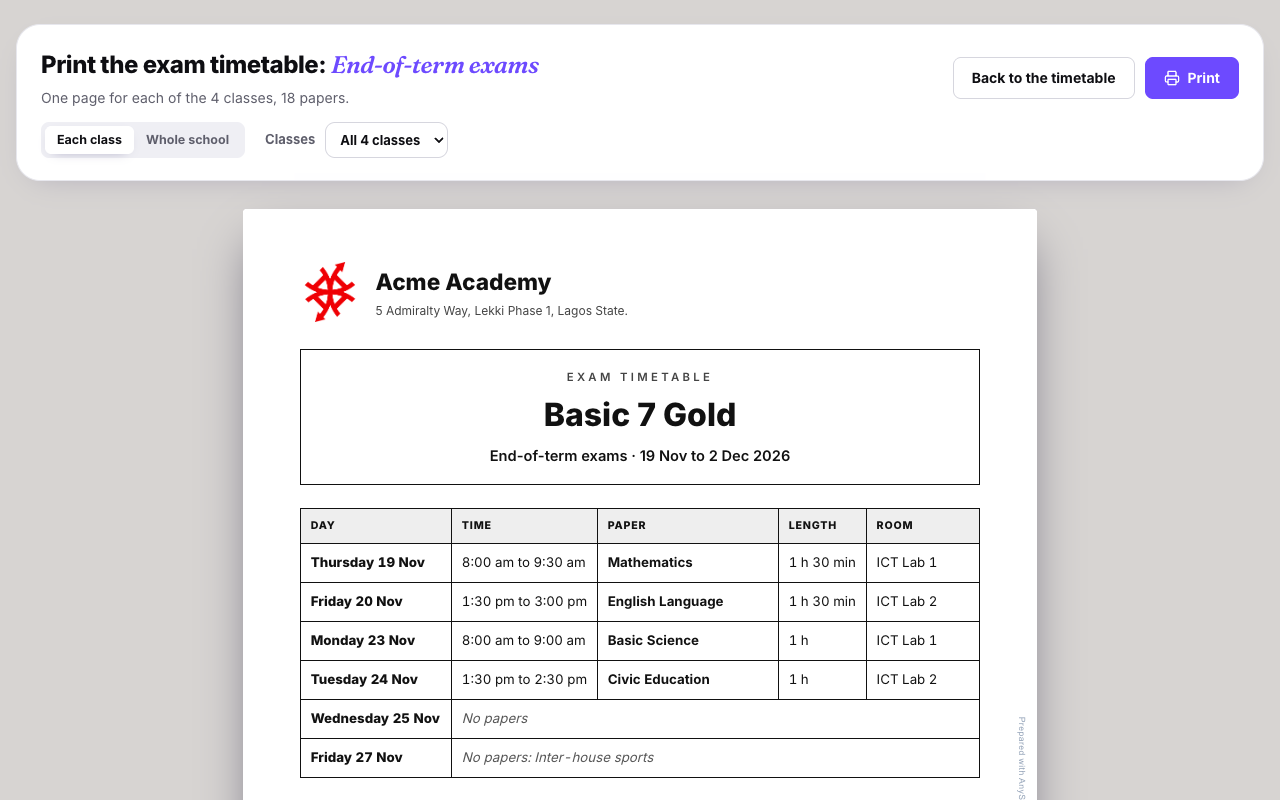
Press Print on a published week. A new tab opens with one A4 page per class in your school’s letterhead: each day, with every paper’s time, length and room. A day off shows No papers with its reason.
- Pick one class under Classes to print just that class’s page.
- Choose Whole school for one landscape page with every class, for the notice board.
- Press Print. Each page shows when it was printed; if a paper moves later, print it again.
A timetable that isn’t published doesn’t print.
Build the timetable
This part is for the exams duty. Before you start, set the week, its sittings each day, its days off and your CBT rooms on Sessions and terms. Teachers pick the week when they set a paper; they don’t type a time.
Open Assessments and press Exam timetable. Pick the week at the top.
Suggest a timetable
Press Suggest timetable. AnySchool places every paper of the week:
- no student sits two papers at the same time, worked out from the students who actually sit each paper;
- each paper goes in a sitting at least as long as the paper;
- a class sits no more papers a day than the week allows (3 unless you changed it);
- English and Mathematics go early in the week, long papers go on different days, and a teacher isn’t in two of their own papers at once, where that can be done.
Papers you placed by hand stay where they are. Press Suggest timetable again after more papers are set: it fills in only the rest.
A paper pulled into the week with a time already saved shows on that sitting, as if you had placed it.
A paper written on paper is marked On paper. It follows the same rules, so it never clashes with a CBT paper for the same students and counts towards the day’s limit. It takes no CBT seats: it sits in the class’s own classroom, and the room column says Classroom, on paper. By room lists these papers under Classrooms (on paper).
Big classes sit in batches
When a class has more students than the CBT room has seats, the paper runs in batches the same day, one after another with 15 minutes between them to change over. The paper shows how many batches and when they start, such as 2 batches · 8:00 am and 9:45 am. The room and those students are kept for the paper from the first batch’s start to the last batch’s end. If the batches would run past the day’s last sitting, the paper goes to To place: add a room or a sitting.
Arms of a class (JSS 1 Gold and JSS 1 Blue) sit a subject at the same time where they can, so questions can’t pass between them. When the seats run short, they sit back to back the same day. If they have to sit at different times, Needs a look says so.
When you publish, students are put in batches by surname, and Publish lists the papers that run in batches. Each student can start only at their own batch’s time; their Your exams shows it. If you move a batched paper, every batch moves with it. The printout lists each batch with its surnames, such as Batch 2, 9:45 am: Musa to Yusuf.
Fix what it lists
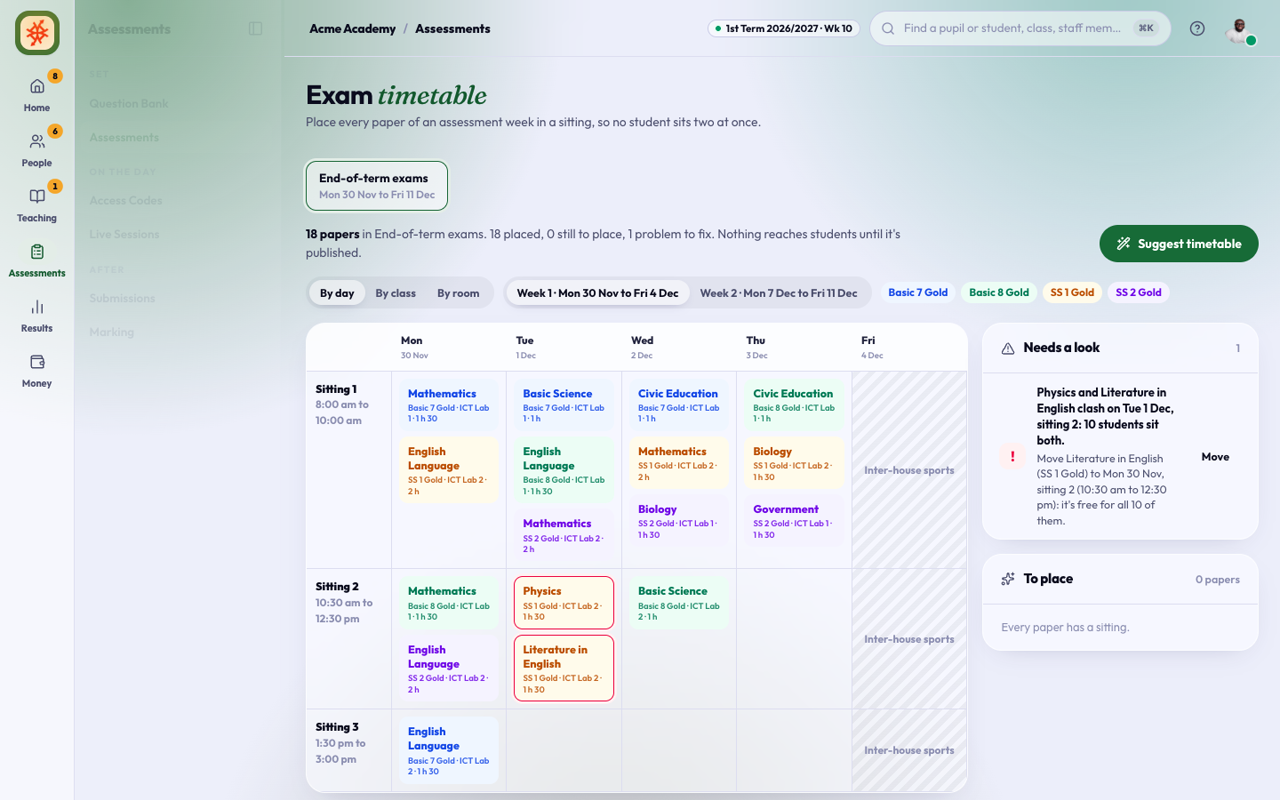
Needs a look lists every problem in plain words: a clash (with how many students sit both papers), a class with too many papers in a day, a paper longer than its sitting, more students than the room has seats, a paper whose batches would end after the day, or arms of a class that sit a subject at different times. Where there’s a free sitting, it says which one. Press Move to send the paper there.
To place lists the papers without a sitting yet, with the reason.
Move a paper
Tap any paper. The Move list shows every sitting of the week, free ones first. A sitting that would cause a clash says so, and names the papers and the number of students, before you choose it. Pick a sitting to move the paper there. It then stays put when you suggest again.
On a phone, the timetable is a list by day; tap a paper to move it.
See it by day, class or room
Use By day, By class or By room above the timetable. A week of two calendar weeks shows one at a time: switch with Week 1 and Week 2. Each class has its own colour.
Publish the timetable
Nothing reaches teachers, students or parents until the timetable is published. From 7 days before a week starts, Home reminds the exams duty while it isn’t published.
When every paper is placed and Needs a look lists no clash, press Publish. Until then the button says what’s left, for example “1 paper is still to place.”
Publishing gives every paper the time of its sitting:
- it starts when the sitting starts and closes after the paper’s length;
- students can start it only at that time;
- for approved papers, students get the 24-hour notice and their access codes an hour before, as usual. A paper approved later gets them too.
- each student’s parents and guardians see the student’s own papers in the parents app, and get one email with them (where the school sends email). Only the families of students who sit a paper hear about it.
Change it after publishing
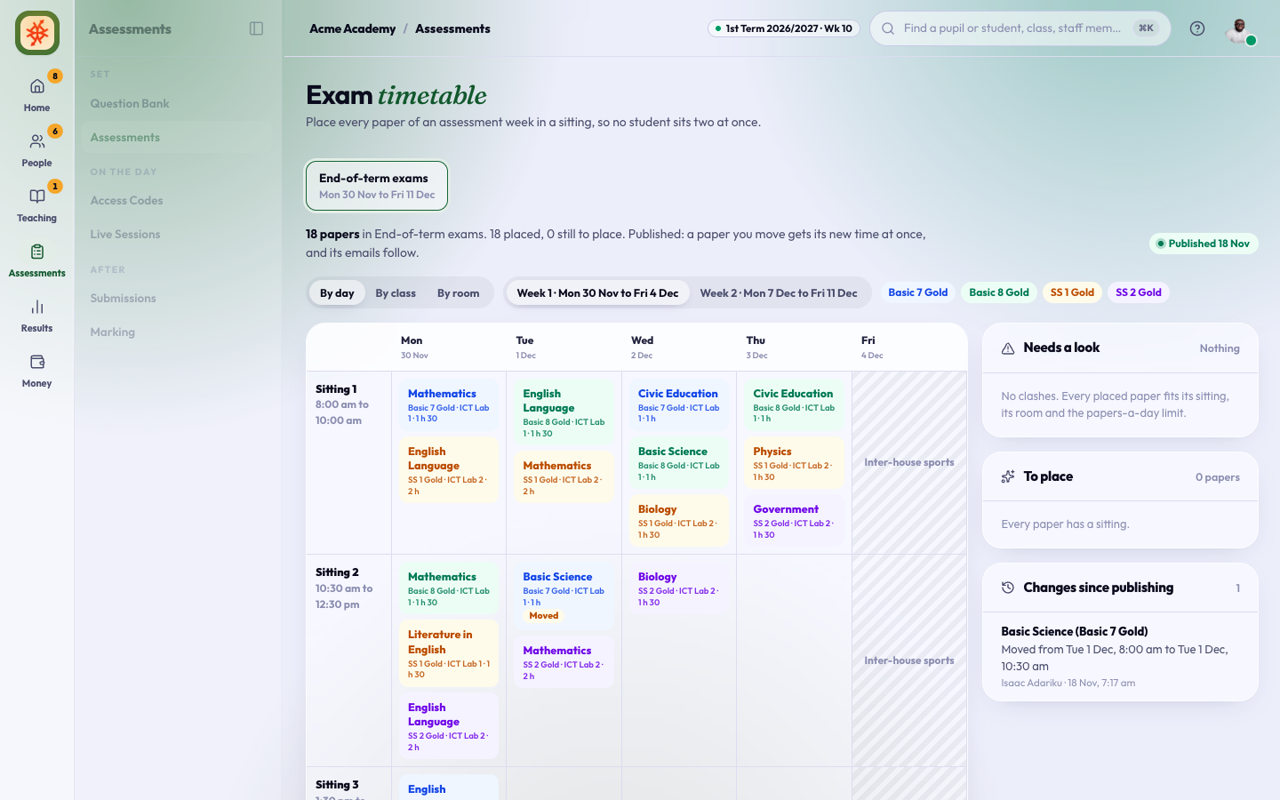
You can still move a paper. Its new time is live at once, the paper shows Moved, and Changes since publishing lists where it was, where it went, who moved it and when. Its emails follow the new time; nothing goes out for the old one. Ten minutes after the last change, the families of the students who sit that paper get one email with the old and the new time. A student whose own batch time didn’t change isn’t emailed, and a paper moved back to where it was sends nothing.
If you take a day out of the week on Sessions and terms, its papers lose their time and go back to To place. Move them to another sitting.
Holidays from the school calendar
When your school uses the school calendar, its holidays and breaks are days off in the exam week by themselves. You don’t add them again on Sessions and terms; the week shows how many there are.
- The timetable shows the day as off, with its name and From the school calendar. A date that is still expected, such as Eid, says date expected.
- A holiday for one section closes the day only for that section’s classes. The day’s heading says Off for some classes.
- Suggest timetable never puts a paper on a day off, and a paper can’t be moved to one.
- Events (school open) don’t close anything.
If a holiday is added after papers are placed on that day, nothing moves by itself. Needs a look lists each paper with the holiday, and Move takes it to a free sitting. The week can’t be published again until they’re moved.
Each published week also shows on Calendar as one block, and on the parents’ calendar for the families whose students sit a paper in it.
A paper set after publishing waits in To place. Press Place the rest, or move it, and it gets its time straight away.