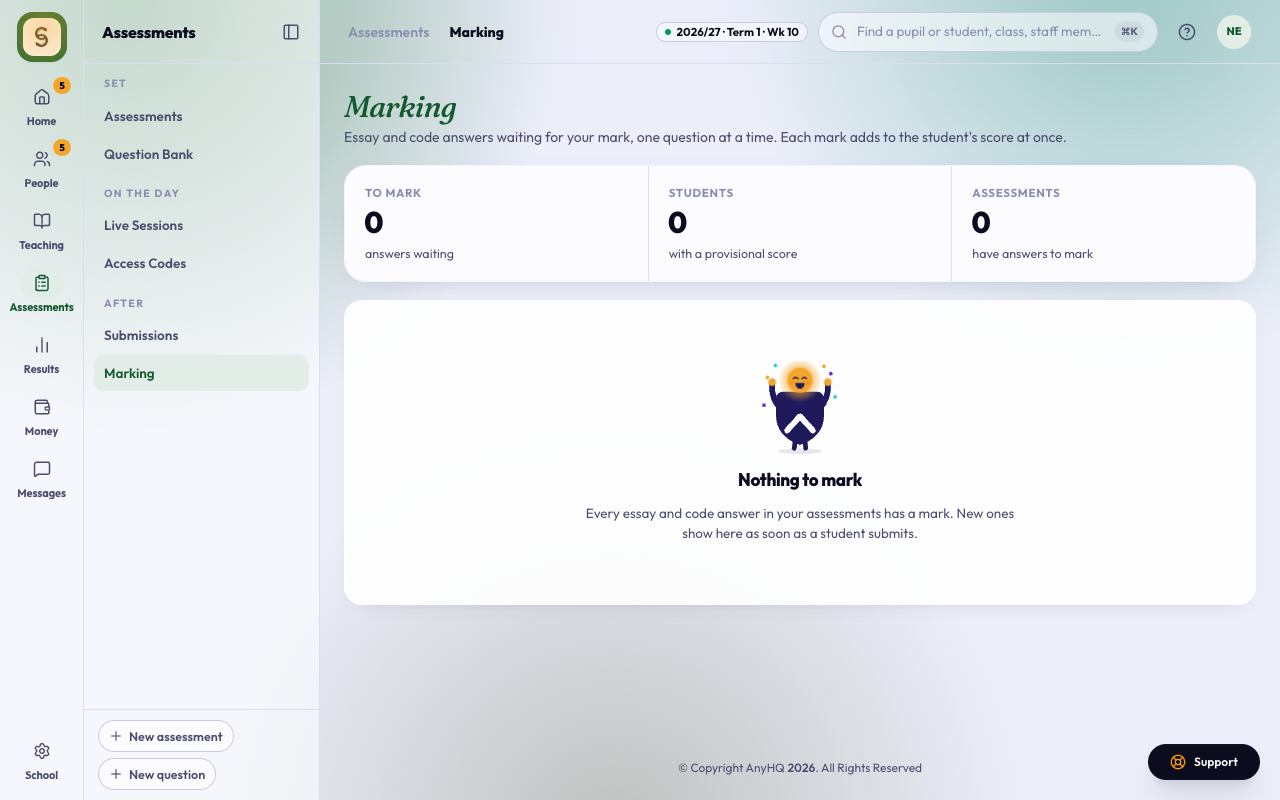
Multiple-choice and other questions with a key are marked the moment a student submits. Essay and code answers need a teacher, and until they’re marked the student’s score is provisional: it counts only what the computer could mark. Marking puts every written answer waiting for you in one place.
Who sees what
- A teacher sees the assessments they set, and those for a subject they teach in that class this session.
- A head of department sees the assessments set in their department.
- The exam officer, the principal and the school’s owner see every assessment.
Home’s Needs your attention says how many answers are waiting for you, and Mark opens the page.
Mark the answers
- Open Marking under Assessments.
- On the left, each assessment lists its essay and code questions with how many answers are still to mark. Press a question.
- The first student still to mark opens, with the question, the passage if the question is part of a set, their answer and your marking guide.
- Type the mark, out of the question’s marks. Half marks are fine.
- Press Enter (or Save and next). The mark is saved, the student’s score is added up again, and the next answer still to mark opens.
Use ← and → to move between students without saving. When every answer to a question is marked, Next question takes you to the next one waiting.
Beside the mark you see the student’s score as it stands. It says Provisional while any of their written answers is still waiting, and changes as soon as you save.
Essays written on paper
When there aren’t enough computers or time for long answers, students can write the essays in their answer booklets and do everything else on the computer.
- In the test’s set-up, at Questions and marks, choose On paper under Where students answer the essays. Where the school has this turned on, new tests start on paper; choose On screen if students should type their essays.
- Print the answer booklets: on the test’s page (or in its preview) press Print answer booklets. Each student gets their own booklet with their name, admission number and class already on the cover, a marks table for you, a ruled page for each essay under its question number, and an extra page at the back. Add Blank copies for spares and late joiners. The questions aren’t printed unless you turn on Print the questions too, so booklets printed days early don’t let them out.
- Press Preview on the test to take it as a student would, booklet essays included.
- Students still see the essay questions on the computer, after the other questions and in the order you set, so their numbers match the booklet even when questions are shuffled. They have no box to type in. Each one says to write the answer in the booklet with its question number, so students who type slowly don’t lose time. The question list marks them In your booklet, and they never count as unanswered. Before they start, and again before they submit, the CBT app reminds them to hand in their booklet.
- As each student submits, their essays appear in Marking as Written on paper, listed by surname, the order a pile of booklets is usually in.
- Take a booklet, find the student, and type the mark from it with your marking guide beside you. Their score is added up again as you save.
Choose before the test starts: once a student has started, where the essays are answered can’t change.
Change a mark
Open the question again, move to the student and type the new mark, then press Update mark. The score is added up again from every answer. The new score reaches report sheets that haven’t been approved yet; an approved class keeps the score it was approved with.
You can also mark one student’s essays from Submissions: open their submission and press Mark essay answers. It saves the marks the same way.
When the essays are marked, results can be printed and emailed from Submissions, and the test’s scores reach Report Scores.