See actual against budget
You need Record Spending and Income, Set the Budget or the board’s school summary. The Bursar, the Chairman, the proprietor and board members have one of them. Budget is switched on for your school by AnySchool; ask us if you don’t see Budget in the menu.
- Open Budget. You land on Overview.
- Pick the session at the top: this one or the last.
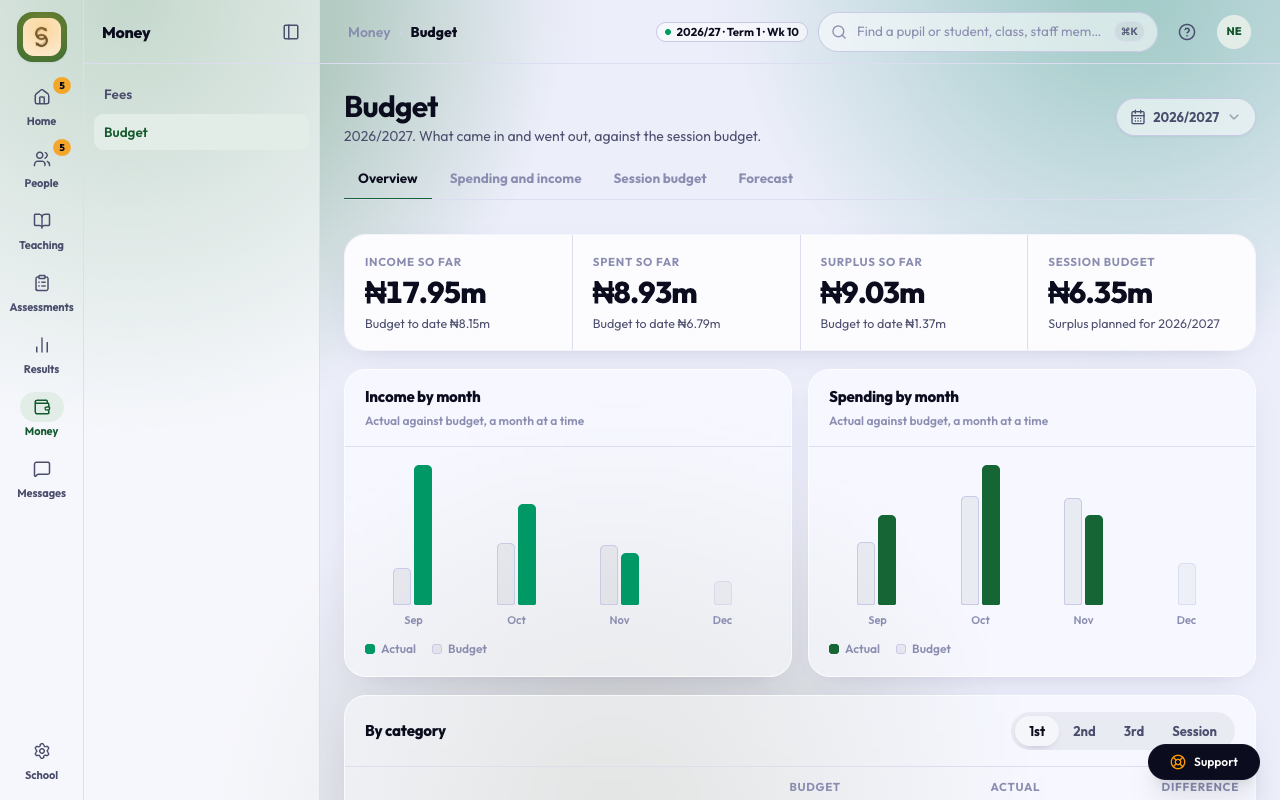
- Read the tiles: income and spending so far, each against the Budget to date, and the surplus or loss.
- Look at Income by month and Spending by month. The solid column is what actually happened; the pale one is the budget.
- Under By category, pick 1st, 2nd, 3rd or Session to see budget, actual and the difference for each category.
Where the figures come from
- School fees actually collected come from Fees: what parents paid, by the day it was paid. Voided payments and waivers don’t count. A term’s figure is the same as Fees shows for that term.
- Other income and all spending come from Spending and income. Voided lines don’t count.
- The budget comes from Session budget. Each term’s budget is spread evenly over the term’s days, so Budget to date and each month are fair to compare. Set the term’s dates in Sessions and terms for the fairest picture.
In the Difference column, more income than budgeted, or less spent, is good. A loss shows in red.
Every branch of a group
If you belong to a school group and hold the school summary, you see every branch. Pick All branches or one branch at the top. By branch lists each branch’s income, spending and surplus with the total for the group. A branch without Budget switched on is left out, and the page names it.