Set the session budget
You need the Set the Budget duty to change the budget. The Bursar and the Chairman of the board have it. With the Record Spending and Income duty alone, you can see the budget but not change it. Budget is switched on for your school by AnySchool; ask us if you don’t see Budget in the menu.
- Open Budget, then Session budget.
- Pick the session at the top: this one or the next.
- Check Fee income. It comes from Fees: each class’s fees for the term, times the students enrolled, times the Collection rate.
- Type each term’s Other income: uniform and book sales, the school bus, after-school.
- Type each term’s Costs: staff pay, power and diesel, rent, maintenance, materials, building and equipment.
- Press Save budget.
The tiles and Surplus or loss update as you type, so you can try a figure before you save it.
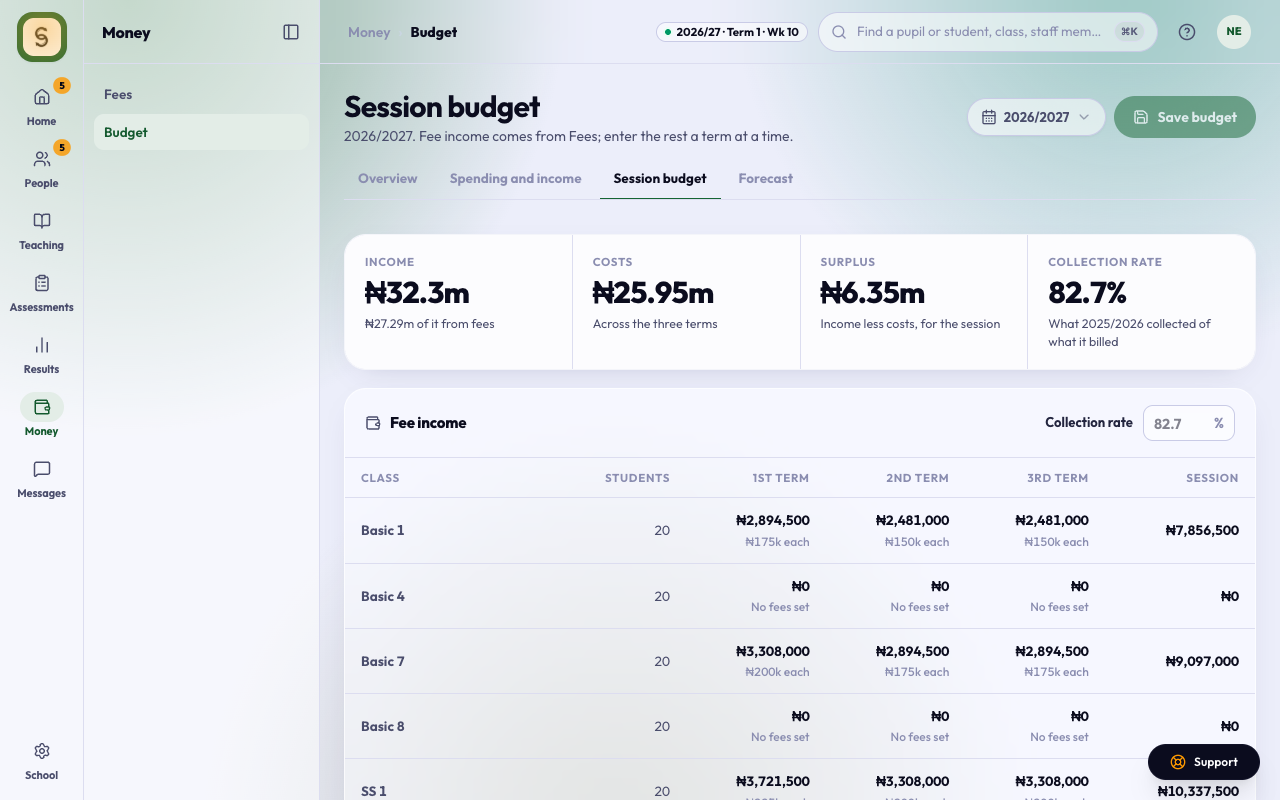
The collection rate
Not every parent pays in full. The collection rate is the share of billed fees you expect to collect. Until you set one, AnySchool uses what your school collected last session of what it billed; with no history, 85%.
Type a rate in Collection rate to see what happens if fewer parents pay, then save it with the budget. Press Use last session’s to go back to the worked-out rate.
Next session, before it starts
Pick next session to plan ahead. Until students are enrolled and fees are set for it, fee income uses this session’s students and fees, and the page says so. It updates on its own as they come in.
Where Fees isn’t on
Fee income can’t come from Fees, so type it under Income, as School fees, a term at a time.
Staff pay
Type staff pay by hand until HR & Payroll is on for your school.