Record spending and other income
You need the Record Spending and Income duty. The Bursar has it. Budget is switched on for your school by AnySchool; ask us if you don’t see Budget in the menu.
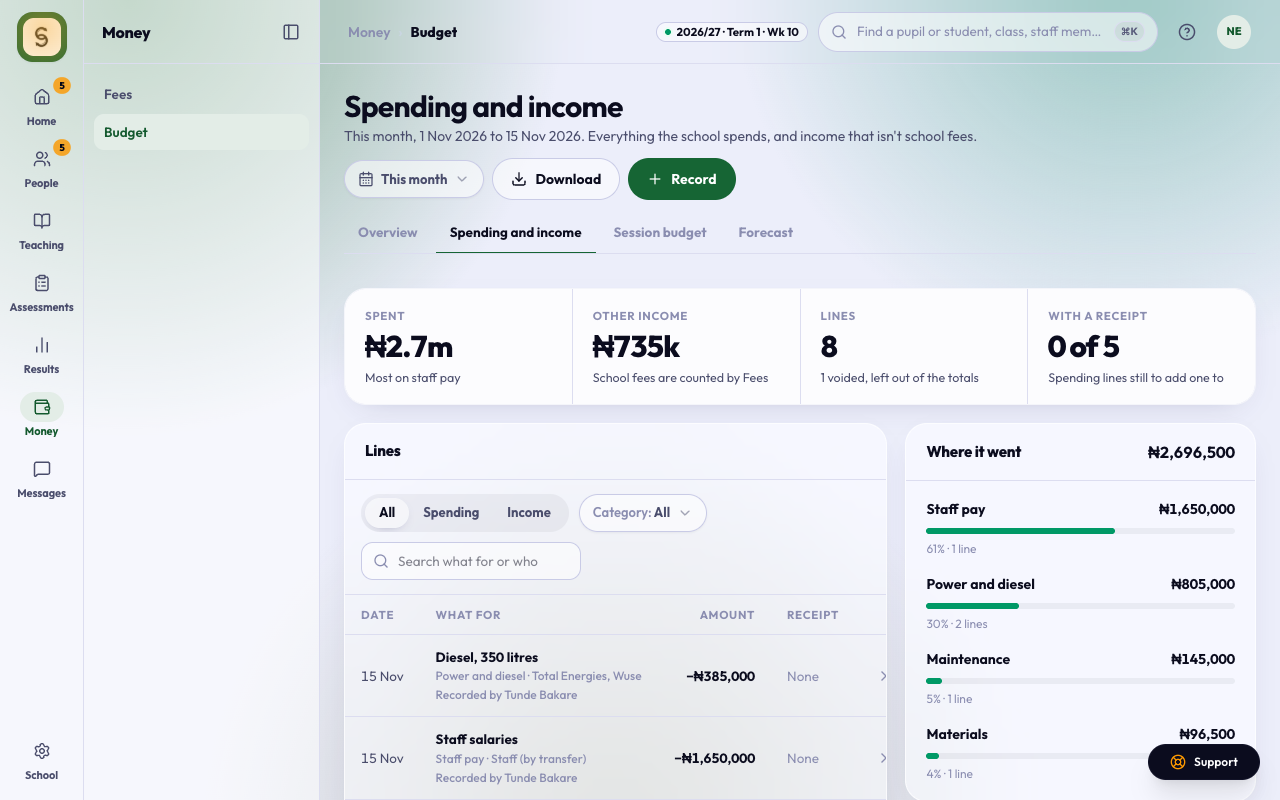
- Open Budget, then Spending and income.
- Press Record.
- Choose Spending or Income, then a Category, for example Power and diesel or Uniforms.
- Enter the Amount and the day it was paid or received. It can’t be in the future, or more than two years ago.
- Add What for and who it was Paid to or Received from. Both are optional, but they help when someone asks later.
- Press Add a photo or PDF of the receipt and pick the file. Up to 2 MB.
- Press Save.
The line shows at the top of Lines, and the totals and Where it went update.
School fees aren’t recorded here: Fees already counts them. Record staff pay here by hand until HR & Payroll is on for your school.
Find a line
- Pick a period at the top: This month, Last month, Last 3 months, This year or Last 12 months.
- Use All, Spending or Income, a Category, or search by what it was for or who.
- Press Open on a line to see its receipt. Only the Bursary can open receipts.
- Download saves the period’s lines as a spreadsheet, voided ones marked.
Void a wrong line
Lines are never deleted. Press × on the line, say why (for example Entered twice), and press Void line. It stays on the list, struck through with your reason, and drops out of the totals.
What the board sees
Whoever sets the budget, the proprietor and the board see Spending and income too, with the totals only: how much was spent and received, by category and by month. They don’t see the lines or the receipts.