Registers, fee bills, tests and report sheets all belong to a session and term, so set them first. Other pages call this Academic setup.
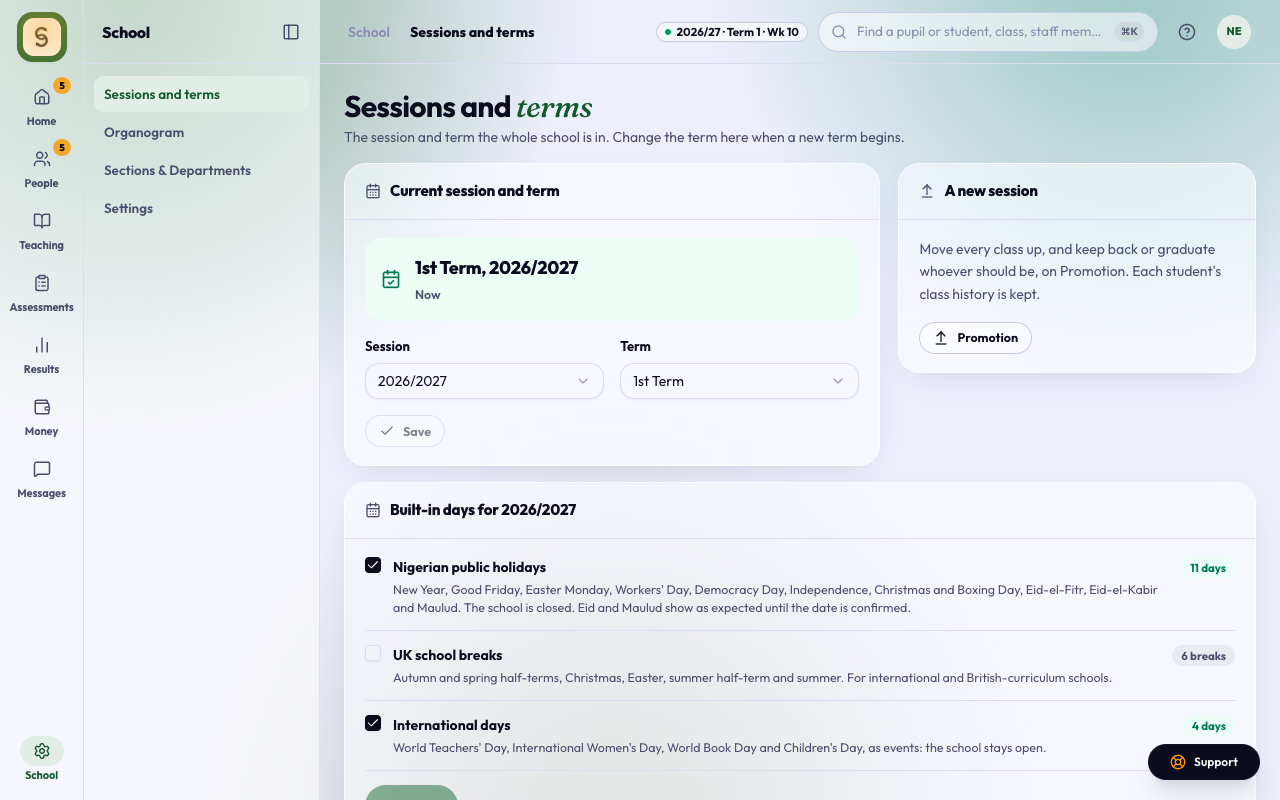
Set the current session and term
You need the school settings duty.
- Choose Sessions and terms in the School space.
- Under Current session and term, pick the Session (for example 2026/2027) and the Term (1st Term, 2nd Term or 3rd Term).
- Read the note that appears, then press Save.
You see The school is now in the … with the term and session you chose.
Set the term dates
Each term needs its start and end date. Until the current term has both, new assessments, registers, fee bills and report sheets wait, and Home shows Set the start and end dates at the top for whoever has the school settings duty.
- On Sessions and terms, find Term dates for the current session.
- The first time, the dates are the usual Nigerian calendar: 1st Term from the second Monday of September to the second Friday of December, 2nd Term from the second Monday of January to the second Friday of April, 3rd Term from the last Monday of April to the third Friday of July. Change any that differ from your school’s calendar.
- Press Save dates.
The current term must have both dates. Each term must end after it starts and start after the term before it ends. The session runs from the start of 1st Term to the end of 3rd Term.
Tests stay inside the term
A test filed under a term can start on the term’s first day and must end by 11:59 PM three days before the term ends. Those last three days are for marking and report sheets. When you set a test’s times, the days outside that window are greyed out, and a test that runs past it can’t be saved or approved.
Tests set before the term had its dates may run past it. They’re listed on Sessions and terms under Tests that run past the term, and Home shows how many. Press Close tests by the last test day to bring their end time in; nothing else about them changes. A test that starts after the last test day has to be moved or archived from its own page.
Entrance and placement tests, and tests with no term, aren’t affected. If your school’s calendar differs, change the term dates and the window moves with them.
Set the assessment weeks
When your school uses the assessment timetable, the school sets when tests and exams happen, not each teacher. You need the exams duty (the Exam Officer, the Vice Principal or the Principal hold it); everyone else on staff sees the weeks without changing them.
- On Sessions and terms, find Assessment weeks for the current term.
- Press CA test week, Mid-term test week or Exams week. Each starts from the usual Nigerian calendar: CA tests in the 4th week of term, mid-term tests in the 6th, and exams in the last two school weeks before the last test day.
- Check the First day and Last day. A week sits inside the term and ends three days before the term does.
- Set the Sittings each day, for example 8:00 am to 10:00 am, 10:30 am to 12:30 pm and 1:30 pm to 3:00 pm. Sittings run between 7:00 am and 6:00 pm and can’t overlap.
- Under Days, tap a day to take it out, for a holiday or inter-house sports, and say why.
- Pick At most papers a day, per class (3 for exams is usual), then press Save week.
Papers sit Monday to Friday, in these sittings only. Press Change on a week to move its days or sittings; papers already placed in a sitting that still exists stay where they are.
Each week shows how many papers are set for it and how many are approved. Papers saved before the week was set, with their own start and end, show as Pull in 3 saved papers: press it to put them in the week. They keep their times until the timetable is published. A week with papers in it can’t be removed.
Add your CBT rooms
Under CBT rooms, type each room’s name and how many computers students can use in it, then press Add room. The timetable warns when a class is bigger than its room. To change the seats, type the new number and click away.
When a new term begins
Change the Term and press Save. New registers, fee bills, tests and report sheets start in the new term. Everything recorded in the old term stays there.
When a new session begins
- First move everyone up on Promotion (the Promotion button under A new session). See Promote students at the end of the session.
- Then change the Session here and press Save.
Classes, registers and fees move to the new session. Last session’s class lists, results and payments stay as they are.
The week of term on every page
The thin line at the very top of every page shows today’s date and a pill with the session, the term and the week, for example 2026/2027 · First term · Week 10. Weeks count from the week the term starts in. On a mid-term break, a holiday you set in the calendar, or between terms, the pill turns amber and says so; between terms it also says when the next term starts. While the menu is folded to icons, the line names your school too.
To fold the menu or keep it open, rest the mouse on your school’s logo at the top of the menu and click the icon it turns into.