Print the cards
You can start printing from three places. Each one opens a new tab:
- Classes and arms: choose an arm, then Print ID cards.
- Students: tick the students, then Print ID cards.
- A student’s profile: Print ID card.
On the print page:
- Choose Landscape or Portrait. This becomes the school’s layout.
- If some students have no photo, use Upload photos, or switch on Leave them out.
- Press Print. Print double-sided on A4, flipping on the long edge, at 100% scale.
Only students in a class this session, whom you look after, get a card.
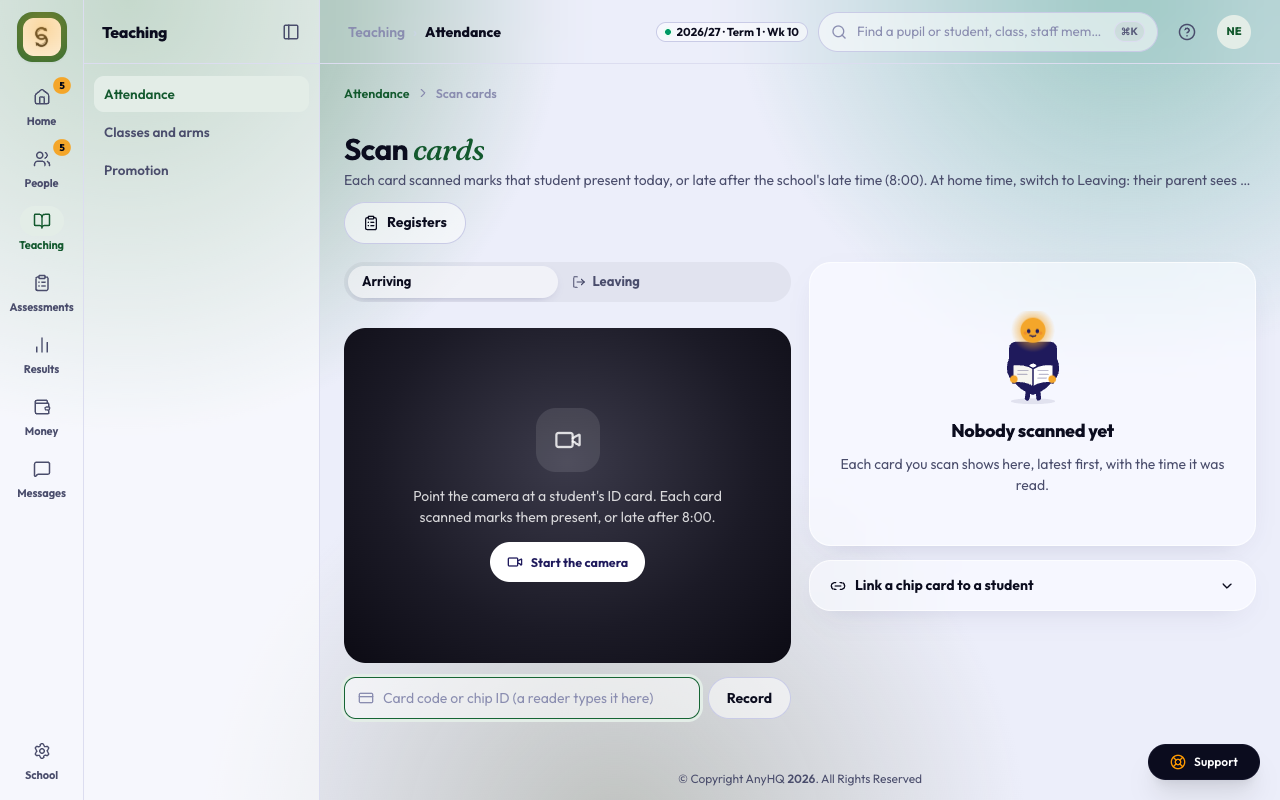
Scan cards as students arrive
- Open Register, then press Scan cards.
- Press Start the camera and hold each card’s QR code up to it.
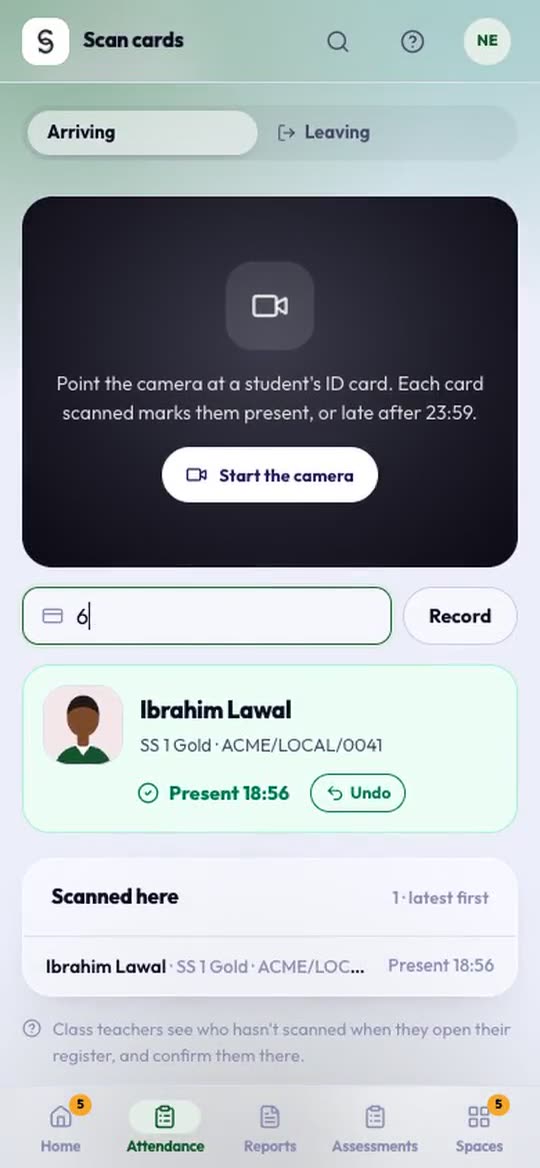
- Each scan shows Present and the time, or Late after the school’s late time. A second scan says Already scanned.
A card reader works too. Click in the Card code or chip ID box, scan, and press Record. To choose a reader and set it up, see Choose and set up a card reader for the gate.
Scan cards as students leave
At home time, switch from Arriving to Leaving above the camera, and scan each card as the student goes out. Each scan shows Left and the time. Where the school has live attendance for parents on, the parent’s page shows the time their ward left within a few seconds.
A student who wasn’t scanned in the morning still counts as present when scanned on the way out.
Undo a scan
Scanned the wrong card? Press Undo on the last scan.
- Undoing a Leaving scan clears the time they left.
- Undoing an Arriving scan removes it. If the scan had turned an absence in the register into Present or Late, the absence comes back.
Only today’s scans can be undone, by staff who can take that class’s register. The parent’s page updates either way.
If the camera says this browser can’t read QR codes, use Chrome on Android, or a card reader.
Then confirm in the register
When the class teacher opens the register, students who scanned late start as Late. Students who didn’t scan are tagged Not scanned, with a banner: check them before you submit.
Chip (RFID) cards
To use a chip card, open Link a chip card to a student on the Scan cards page. Enter the student’s card code and the chip ID, then press Link.