Spaces: one menu for everything
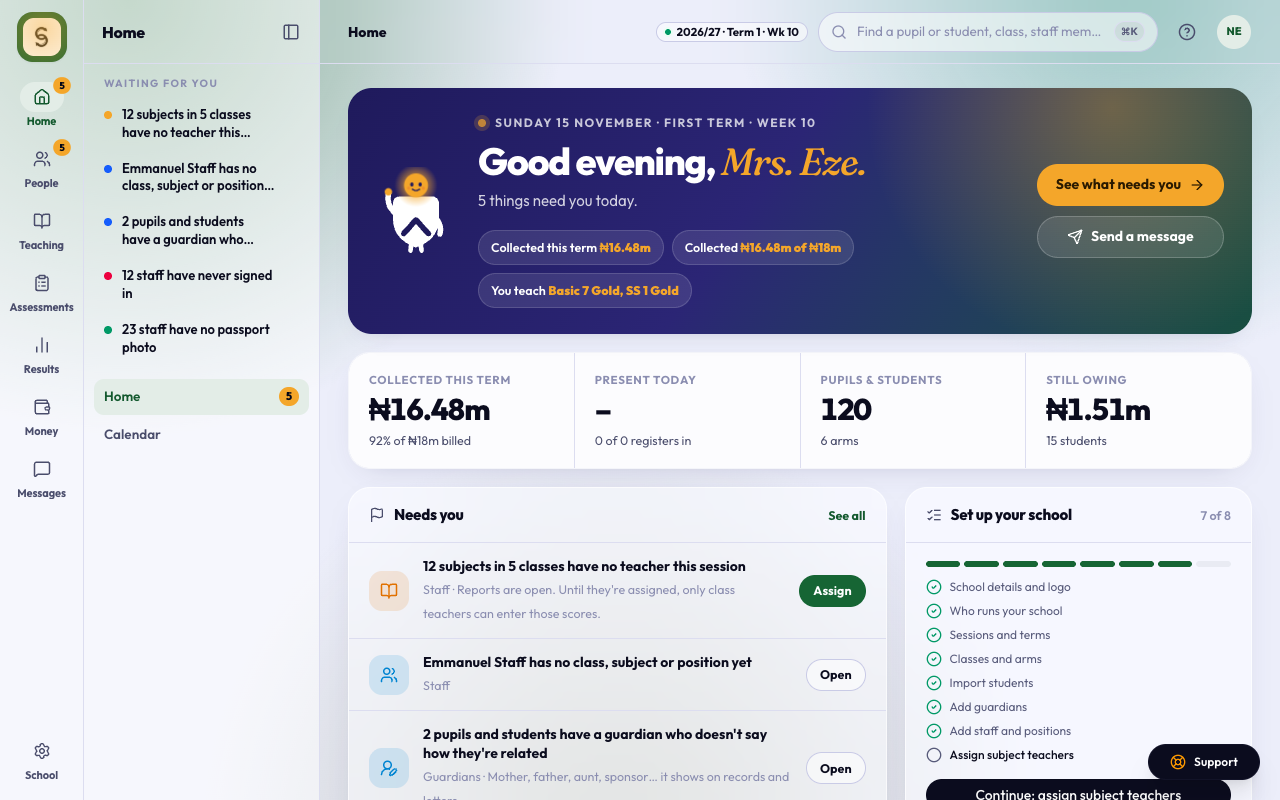
If your school uses Spaces, the menu is a short row of spaces down the left of the screen. Each space holds the pages that belong together: Home, People, Teaching, Assessments, Results, Money, Messages and School. You only see the spaces your position lets you open.
Pick a space and its pages open beside it. AnySchool remembers the page you last used in each space, so coming back lands you where you left off. Nothing folds or opens by itself. Press [ to hide or show the list of pages.
Results lists its pages in the order the term runs, and shows how far along each step is: how much of the scores are in, how many classes are waiting to be checked and how many report sheets are approved.
Waiting for you
Each space starts with what is waiting for you there, in the same words as Home. Press one to open the page that clears it. It drops off the list once it’s done.
The bar on top
One bar runs across the top. It shows where you are, the term, search, ? for help on the page you’re on, and your account.
What does this icon do?
Rest the mouse on any button that is only an icon, or move to it with Tab, and a short tip says what it does, like Show page list or More for Ada Obi. Screen readers read the same words. On a phone, these buttons sit in labelled rows and sheets instead.
Bigger or smaller text
Open your account menu and choose Text size: Small, Normal or Large. Every screen changes at once, and your choice follows you to any phone or computer you sign in on. Printouts keep the normal size.
Search, and jump to any page
Press ⌘K, or press Search, to find anything. It starts with what you can do, such as Take the register, Record a payment or Send a message. Your pinned pages come next, then every page under its space.
Pin the pages you use most
Point at a page in the menu and press the pin to keep it at the top of Home. On a phone, open Spaces and pin the page you’re on. Your pins follow you to any device. Press the pin again to remove it.
On a phone
Spaces at the bottom opens everything: every space, what’s waiting for you, the buttons to make something in the space you’re in, switching school, What’s new, the welcome tour and Support. Going back, tapping outside or picking a page closes it.
For parents and guardians
In the parent app, the left rail on a laptop has Home, Calendar, Inbox, Payments and Account. On a phone, the same five are the tabs at the bottom. One bar on top has the school, a way to find a student’s page, help and your account.
Home starts with what is waiting for you: new messages, fees to pay and results that are ready. Each says which student it’s about, like “Ada’s result is ready”. Press one to go straight there.
If you can’t find a page
Search for it with ⌘K. If a page you expect isn’t there, your position may not allow it; whoever manages positions at your school can change that in Settings › Positions.