The Calendar holds the whole school year: assessments, public holidays, breaks and events, in one place. Registers aren’t expected on a day the school is closed, and a fee due on a closed day moves to the next school day.
What comes built in
Each new session comes with:
- Nigerian public holidays, such as Independence Day, Christmas, Good Friday and Democracy Day. Eid-el-Fitr, Eid-el-Kabir and Eid-el-Maulud show as expected until the date is confirmed, and move for you when it is.
- International days, such as World Teachers’ Day and Children’s Day. These are events: the school stays open.
- UK-pattern breaks (half-terms, Christmas, Easter and summer), off unless you tick them. They suit schools that follow the British curriculum.
To change what comes built in, open Sessions and terms and use the ticks under Built-in days. You need the school settings duty or calendar duties.
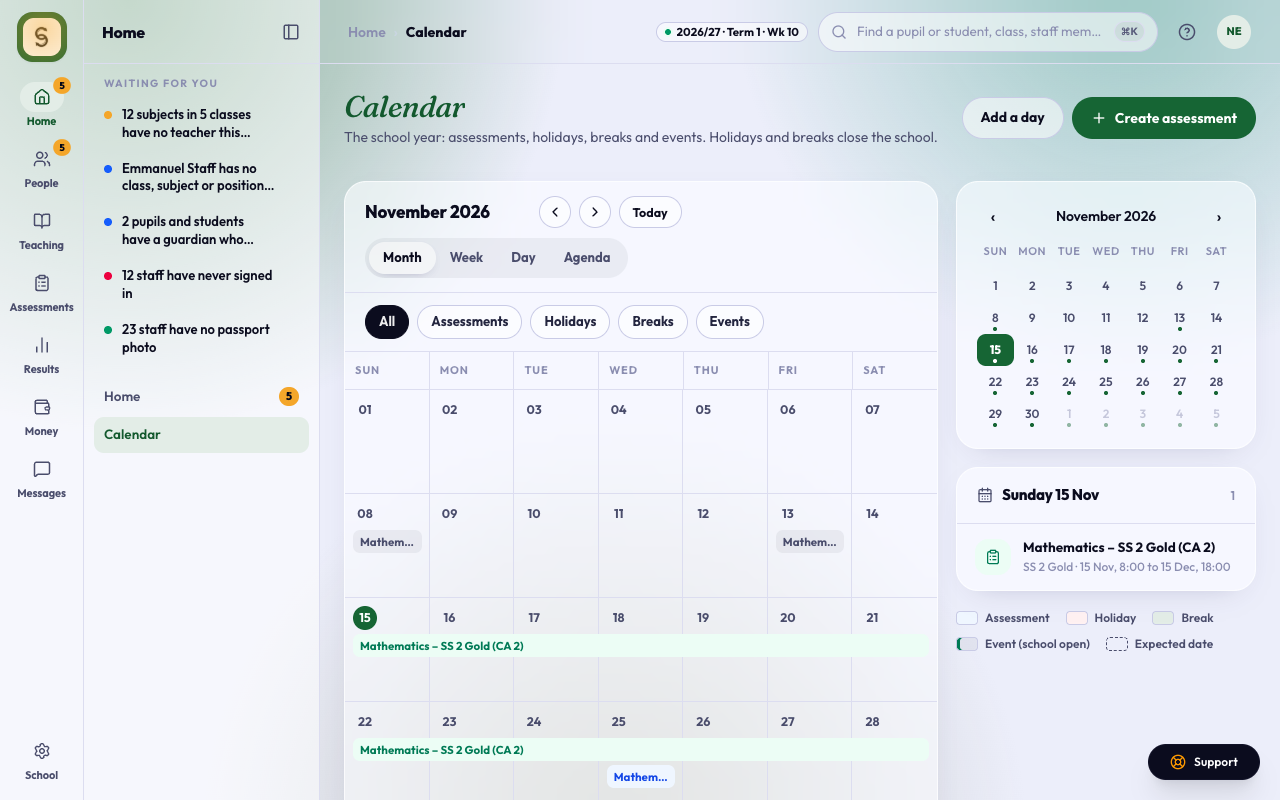
Add a day of your own
You need calendar duties (Calendar: manage).
- Open Calendar in the Home space and press Add a day.
- Give it a name, such as Mid-term break or Inter-house sports.
- Choose its type:
- Holiday or Break: the school is closed.
- Event: the school stays open.
- Pick the first and last day. A break can run up to three months.
- Choose Whole school or the sections it’s for, such as Primary.
- For an event, leave Parents see this ticked to show it to parents, or untick it for a staff meeting or training day. Holidays and breaks always show to parents, because the school is closed.
- If you’re in your group’s top management, you can tick Every branch to add it to each branch at once.
- Press Save.
Change or remove a day
Pick the day on the Calendar, then press Edit or Remove. A built-in day can’t be moved, but you can remove it, and it stays off for the session. Every change shows in the school’s activity with who made it.
Filter the Calendar
Use the chips above the calendar to show All, Assessments, Holidays, Breaks or Events. Closed days are shaded.
Staff birthdays
If you can see the staff list, a gold dot marks a day with a staff birthday and the chosen day names whose it is, with their position. Only the day and month show, never a year, and a member of staff can hide theirs from their own account. Students’ birthdays are not on the calendar.
What parents see
Parents see the next holidays, breaks and events on their Home page in the parent app. A day for one section shows only to parents with a ward in it, and an event with Parents see this unticked shows only to staff (the Calendar shows it as staff only).
Where AnyHQ has switched on the Parent Calendar, parents also get a Calendar tab. It shows the term dates, holidays, breaks and events, plus each of their wards’ tests: the day and the subject, without the time. A test set for one arm shows only to parents of students in that arm. Home then shows the next three things, tests and term dates included.