Sign in with a code
There’s no password to remember. AnySchool emails you a code each time you sign in.
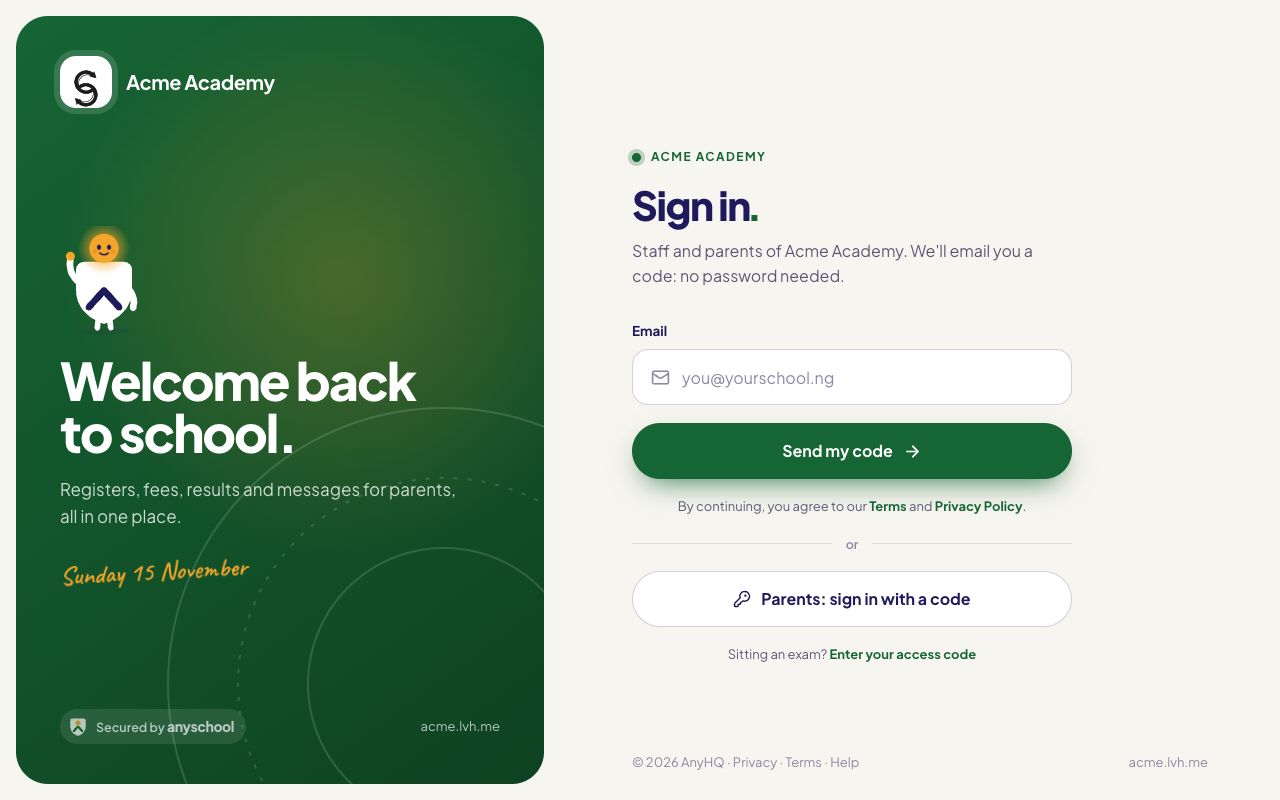
- Open your school’s AnySchool address, or the staff sign-in page.
- Enter the Email your school gave you and press Send my code.
- Open the email from AnySchool. Then either:
- press Sign in in the email, then Sign in on the page it opens, to sign in on the same phone or computer; or
- type the 6 digits into the boxes on the sign-in page, on any device. You’re signed in as soon as you type the last digit. Pasting the code works too, and most phones offer it above the keyboard.
You land on Home, or back on the page you were trying to open.
The button and the code work once, for 10 minutes. No email? Check spam, then press Send again (after 30 seconds). A new code replaces the old one.
- That code has expired or has already been used: ask for a new one.
- Too many wrong tries: after 5 wrong codes, wait 15 minutes, then ask for a new one.
- That’s a lot of codes for one email: you asked for 5 codes in an hour. Wait an hour.
The page always says it has sent a code, even for an email with no staff account. That way nobody can use it to find out who works at your school. Codes only go to people a school has added.
“You don’t have an AnySchool staff account yet”
If you ask for a code with an email that has no staff account at this school, no code is sent. Where AnyHQ has it switched on, AnySchool emails that address instead, to say why:
- You don’t have a staff account yet (it names the school, on your school’s own address): AnySchool accounts are made by your school. Ask your school’s admin or Head of ICT to add you, with that exact email. A typo or an old address on your staff record is the usual reason.
- Your place at the school is switched off: ask your school to switch it back on. Then sign in as usual.
This email only goes to the mailbox you typed, never to the screen, and at most once a day for each email. If you didn’t ask for a code, ignore it: nothing has changed. If nothing arrives at all, contact AnyHQ support: they can see whether a code or this email was sent.
The code isn’t arriving (exam day)
If a code is slow to arrive and you can’t wait, for example on exam day, contact AnyHQ support. After checking it’s you, AnyHQ can make you a one-time sign-in link.
- Open it on the phone or computer you want to use, then press Sign in on the page it opens.
- It works once, for 15 minutes, and only while you still have a place at your school. A newer link replaces an older one.
- Making the link and using it both appear in your school’s activity, with who made it.
Never pass the link to anyone else: whoever opens it first is signed in as you.
Your email is your key
Whoever can read your email can sign in as you, so keep your email account safe: a strong password for the email itself, and its two-step check turned on if it has one.
New devices and signing out
- The first time you sign in from a new browser, computer or phone, AnySchool emails you: New sign-in to your school on Chrome, Windows, Abuja. If it was you, there’s nothing to do.
- Not you? Press Not me: sign out everywhere in the email, then Sign out everywhere on the page it opens. Every device is signed out. Then change the password of your email account, so whoever it was can’t get another code.
- To see where you’re signed in, open your name or picture at the top right, then Your profile and devices › Security & devices › Devices. Press Sign out beside a device, or Sign out everywhere else.
- A device you haven’t used for 4 days signs out on its own, so a shared school computer doesn’t stay signed in. Sign in again when you come back.
Stay signed in?
Right after your code, AnySchool asks Stay signed in? once on each device. Press What’s this? under the question for a reminder.
On a computer other people use, such as the staff room or the ICT lab, press No. AnySchool then keeps nothing from your school on that computer: every page loads fresh, and nothing works without internet. Sign out when you finish, and the next person is asked again.
On your own phone or computer, press Yes. AnySchool keeps a copy of recent lists, such as your classes and students, so pages open quickly and the register works without internet. It never keeps health notes, pickup adults, parents’ and guardians’ phone numbers or emails, questions or answers. The copy is deleted when you sign out, when the device signs out on its own, after 30 days unused, and if your school removes you. Your school can turn the copy off for everyone.
Parents and candidates
- Parents sign in with a code too, at parents.anyschool.ng, the address in the emails their school sends them. Codes go only to an email the school has on a guardian’s record, or to a parent who types the claim code the school gave them. A parent’s device signs out after 30 days without use. See The Parent App.
- Candidates sitting a test go to cbt.anyschool.ng and use their access code and PIN. See Sit a test or exam.