Your first visit
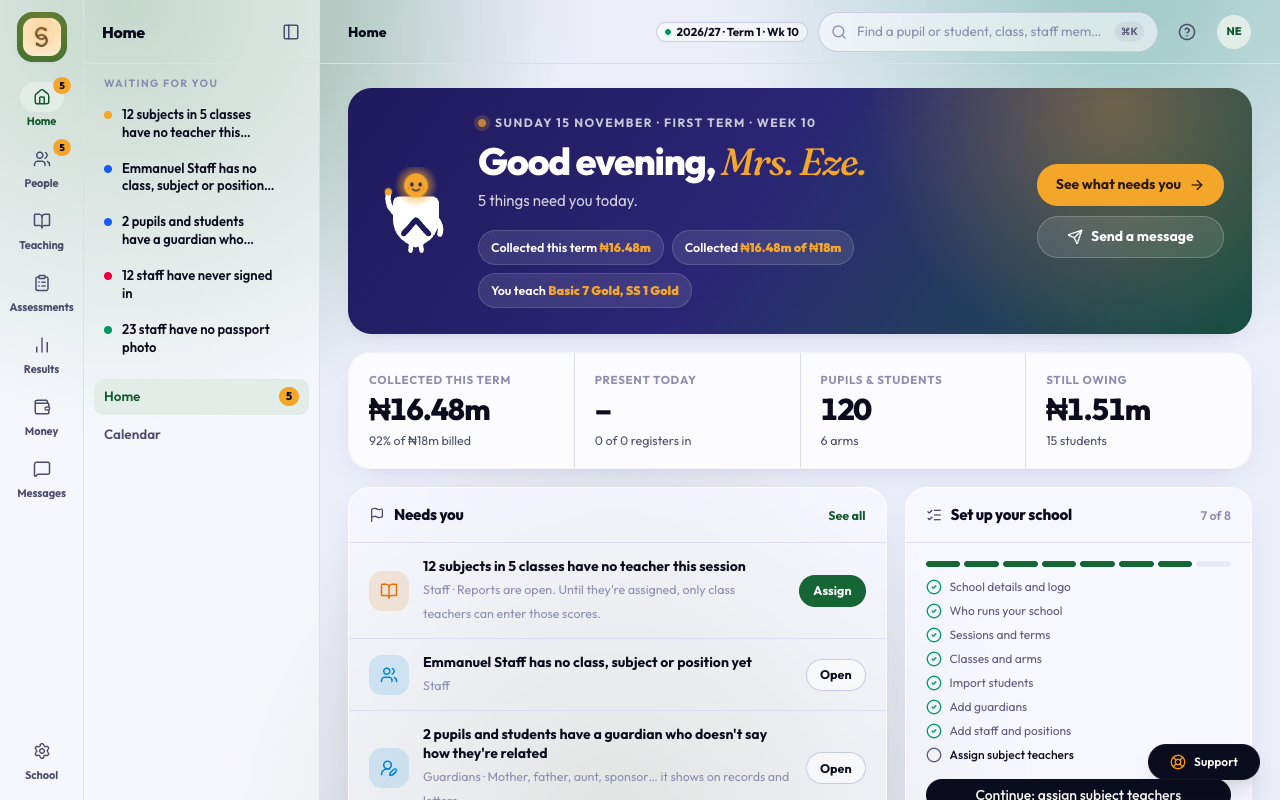
The first time you open AnySchool, a welcome greets you. Show me around points out the four things every page has: the menu of spaces (Spaces at the bottom on a phone), search, ? for help on the page you’re on, and Support. Not now closes it. Either way it won’t show again, on any device.
If your school used AnyOAP, the welcome also says what changed: your tests, questions, students and results came with you, your school’s new address, and signing in with a code sent to your email.
To see the tour again, tap Support, then Take the welcome tour. On a phone, it’s under Spaces at the bottom.
The menu and the top bar
On a computer the menu is a row of spaces down the left, with the pages of the space you’re in beside it; Finding your way around says more. Your account, and Light or Dark, are under your name or picture at the top right.
As you scroll down a page, its title moves into the bar at the top. Home keeps its greeting instead.
AnySchool opens in Light, in your school’s colour. To change it, open your name or picture at the top right and choose Light, Dark or System, and another colour if you like.
The first time you open Home, Students, Attendance, Fees or Report Sheets, a short tour points out what’s on that page. To see a page’s tour again, tap ? and choose Show me around this page, or tap Support, then Show me around this page.
Tell us how it’s going
About two weeks after your first visit, once you’ve used AnySchool on a few days, a small card asks how it’s working for you. Pick one of five faces, from Very hard to Great, and add a line if you like. If it’s hard going, Talk to us opens a message to a person on the AnySchool team. Not now asks again a week later, and after the second time it won’t ask again. Every answer is read by the AnySchool team. The card never shows while a test is being sat.
Open help beside the page
Tap ? at the top of any page, or Support at the bottom right, then Help for this page. Help opens beside the page, so you can follow the steps without leaving your work. On a phone it slides up from the bottom; tap outside it or Close to put it away.
It starts on the article for the page you’re on, with its steps. Under the steps, Other questions on this page jumps to the rest of that article, and New on this page shows what has changed there lately.
If a page has no article yet, help asks what you need and suggests where to start.
Search every article
Type what you’re trying to do in the box at the bottom, for example correct a register or print score sheets. The best match comes first, with your words marked. Tap a result to read it in the same panel. This page takes you back to the page’s own article.
To read an article on the website, or send it to a colleague, tap Open the full article.
Reach a person
At the bottom of help, under Still stuck?:
- Email writes to support@anyschool.ng.
- Report a problem opens a short form. We see the page you were on, so you only need to say what happened.
- WhatsApp chats with the AnySchool team, when it shows there.
To suggest an improvement, tap Support, then Suggest an improvement.
What we learn from how you use AnySchool
To see where people get stuck, AnySchool notes which pages are opened, where people tap and where they leave. Names, typed entries, pictures and text on the page are hidden, and you’re counted by a code that doesn’t name you. In the CBT app we note only that a test was signed into, started and submitted. Your school can ask us to switch this off. The privacy policy has the details.