AnyHQ emails an invitation to the person who will own the school on AnySchool, usually the proprietor or principal. The link opens six short steps. You can change everything later in Settings.
1. About you
Give your name and pick Your position at the school, such as Proprietor, Principal or Head of ICT. Whatever you pick, you’re the school’s owner on AnySchool and can do everything. Your position decides what your Home shows first, and it’s the title on the agreement you sign.
2. Your school
The school’s full name and short name, the kind of school, how classes are named, and the current session and term.
3. Who runs it
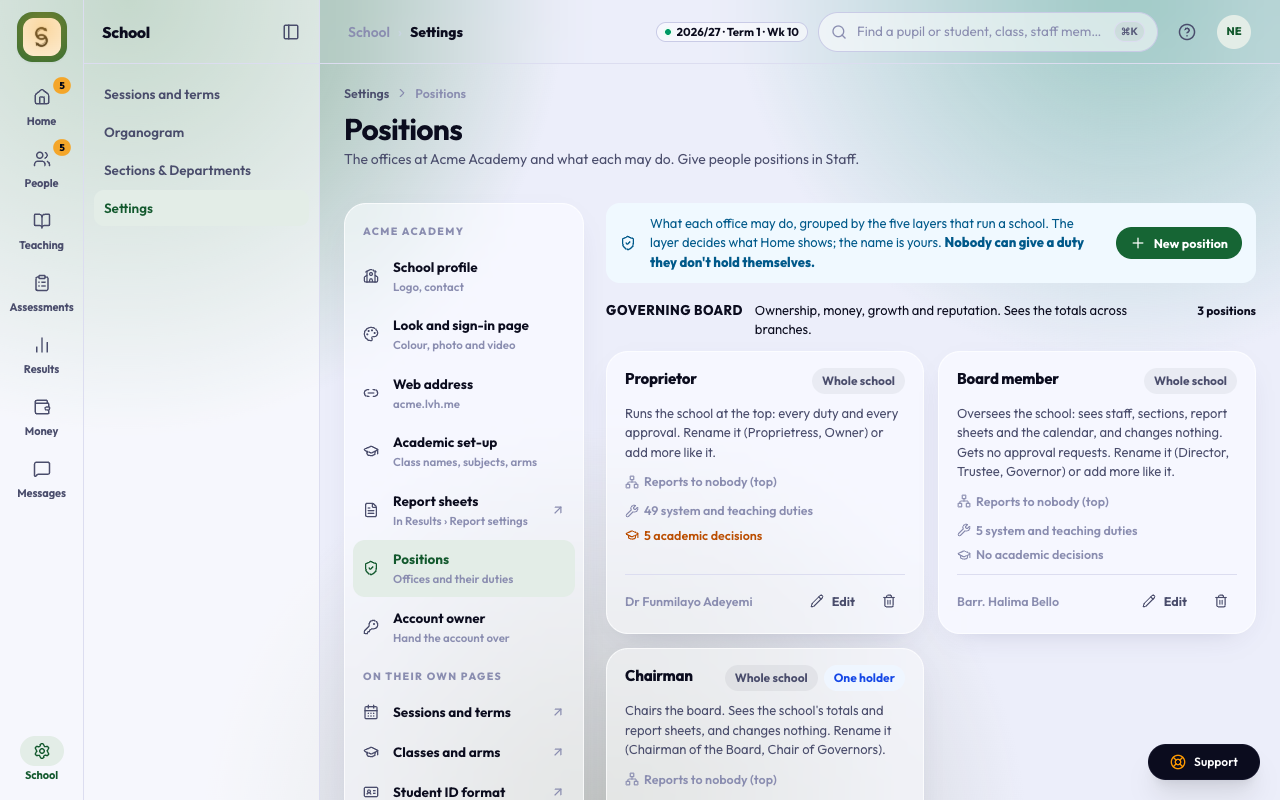
Every school is run in five layers. AnySchool shows each one with its key position:
- Governing Board: the Proprietor and the Chairman. They own the school and answer for money, growth and reputation. They see it all.
- Executive: the Executive Director, who runs every branch for the board. Mostly for schools with more than one branch.
- School Leadership: the Principal, who runs the school day to day and approves results.
- Offices: the Bursar (fees and receipts) and the Head of ICT (staff accounts and set-up).
- Teaching: class and subject teachers. Add them after set-up, from Staff.
For each position, give the person’s name and email. When you finish, AnySchool invites each of them with that position already given, so they arrive with the right access and the right Home. Their email says which position they hold, for example You’re the Bursar at ….
Your own position shows That’s you. If the school has no one in a position, press We don’t have one. Leave a position empty to fill it later. Each person needs their own email, and it can’t be yours.
Only you, as the owner, can give the top and money positions. After set-up, your Head of ICT can add the rest of your staff and give them their positions.
4. The agreement
Open any part to read it, then tick the box to accept it for the school.
5. Sign-in
There’s no password. Each time you sign in, AnySchool emails a code to your invitation’s address. See Sign in to AnySchool.
6. Ready
The page shows who was invited. Press Open your school to start. If anyone couldn’t be invited, add them from Staff and give them their position on their profile.
Change a position later
Positions live in Settings, under Positions, grouped by layer. Rename one to what your school calls it; it stays in its layer.