What Home is for
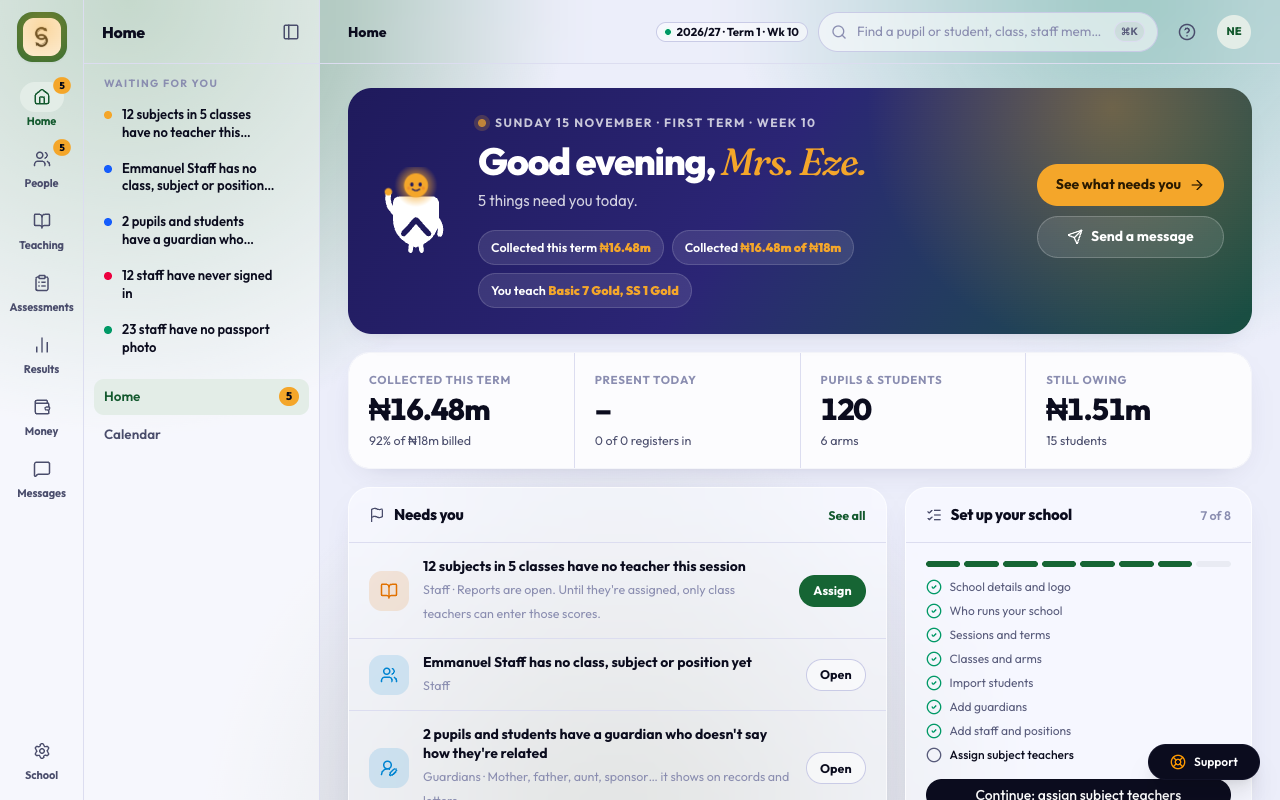
Home is the first page you see after signing in. It gathers what needs you today from every part of AnySchool, so you rarely have to go looking.
At the top, the greeting says how the day stands in one sentence. Below it are up to four numbers, then Needs you: one list of what’s waiting, most urgent first. Press an item to open the page that clears it.
Your Home follows your position
Every position at your school sits in one of five layers, and your layer decides what Home leads with:
- Governing Board (the Proprietor, Chairman, board members): the school’s totals first, such as fees collected and students on roll. Never a single student’s details, registers or tests.
- Executive (the Executive Director, Director of Schools): the day across the school first: attendance, then money and results.
- School Leadership (the Principal, Vice Principals, Heads of Section): attendance and results first, then teaching and students.
- Offices: your office’s own work first. The Bursary sees fees, HR sees staff, Admissions sees applications, Exams sees results and tests, and ICT sees set-up and accounts.
- Teaching: your register and your classes first. No school-wide money or admissions.
You only ever see what your position lets you open. If you hold more than one position, Home follows the highest one, and every office you work in.
Whoever manages positions sets each position’s layer in Settings › Positions. Renaming a position keeps its layer.
Charts for your layer
Under Needs you, two to four charts answer the questions your layer asks every day:
- Governing Board: the budget and forecast, fees collected against billed by class level, students on roll by section, and how far this term’s results are.
- Executive: fees, the budget and forecast, attendance over the last two weeks, and results. Without Budget, students on roll takes its place.
- School Leadership: attendance over the last two weeks, results this term, and who still owes scores.
- Offices: the Bursary sees money in week by week, who still owes and fees by class level; Admissions sees applications and places left; Exams sees this week’s papers, results and who owes scores; HR and ICT see what their work turns on.
- Teaching: your class’s attendance, the scores you still owe, and how your students did in your last tests.
Each chart has a link to the page behind it. A chart only shows when its part of AnySchool is on; if you can’t open its page, the chart shows without the link. Charts never name a student. Assessments keeps its own charts on its pages.
When a chart has nothing to show yet, it says what to do instead, such as Bill this term.
Budget and forecast shows next session’s forecast surplus or loss as the big figure, and this term’s income and spending against the budget to date: the bar is what came in or went out so far, the tick is the budget up to today. In a school group there’s a line for each branch with its forecast. The forecast uses the scenario saved on Budget, Forecast, so the figures match. It shows only while Budget is on.
Branches side by side
The Governing Board and the Executive also see a table of the school’s totals for this term, with last term’s figure under each one:
- Billed and Collected: the term’s fees and how much of them is paid (only when Fees is on).
- On roll, and Admitted · left during the term.
- Average: students’ average on the term’s approved end-of-term results.
- Attendance: how many were in school (present or late) of everyone marked on the term’s registers.
- Staff · vacancies: staff today, and one-holder positions with no one in them.
A school in a group sees a line for each branch it belongs to and All branches added up. The table counts only: it never names or lists a student. A figure that isn’t known yet, such as last term’s before any registers were taken, shows as a dash.
Your place, in your first week
For your first week using Home at a school, a card under the greeting says where you sit: your position (for example You’re the Bursar at …), its layer and office, what it answers for, and whom you report to. Press See who’s who for everyone else, or close the card. Once closed, or after seven days, it doesn’t come back, on any device.
Birthdays this week
A class teacher’s Home shows Birthdays this week for their own class: the names and the day, such as Tue 18 Nov. School Leadership also sees staff birthdays. Nobody sees a year, and the card is left out in a week with no birthdays.
To add your own, open your account and choose Your birthday: pick the month and day (no year) and press Save birthday. Leave it empty and it stays off Home, the calendar and the school’s greeting. If your school has switched Birthday Greetings on, the school also sends a short birthday email at 7am on the day, to a student’s parent or guardian and to each member of staff who has set a birthday. It goes once a year.
A part that’s off never shows
If your school hasn’t turned on a part of AnySchool, such as Fees or Admissions, nothing from it appears on Home. A school without Fees sees no money on Home at all.
Nothing billed yet
Before the term is billed, Home doesn’t show ₦0. If you can set the fees, the money number says Bill this term and opens Fee set-up; the Bursar’s greeting opens on it too. If you can’t, the money numbers stay hidden until there’s something to show.
See Set up fees for how to bill a term.