See what’s left to tidy
Settings › Set-up check lists nine checks, worked out from your records each time it opens: section positions, staff contacts on parent records, class teachers, parent names and phones, staff with no duty, unused positions, subjects you typed in and possible duplicate students. Each says how many records it affects and has a button to the page that fixes it. Home shows the next one you can fix.
- Subjects your school typed in are reviewed by AnyHQ, so that check has no button.
- If a check doesn’t apply to your school, press Switch off and say why. You need to manage the school’s settings. Everyone sees who switched it off and when, and Switch on brings it back.
Fill in missing parent details
A parent record with no name is greeted “Dear Parent or Guardian”, and one with no phone gets no texts. You need to manage the whole school’s students.
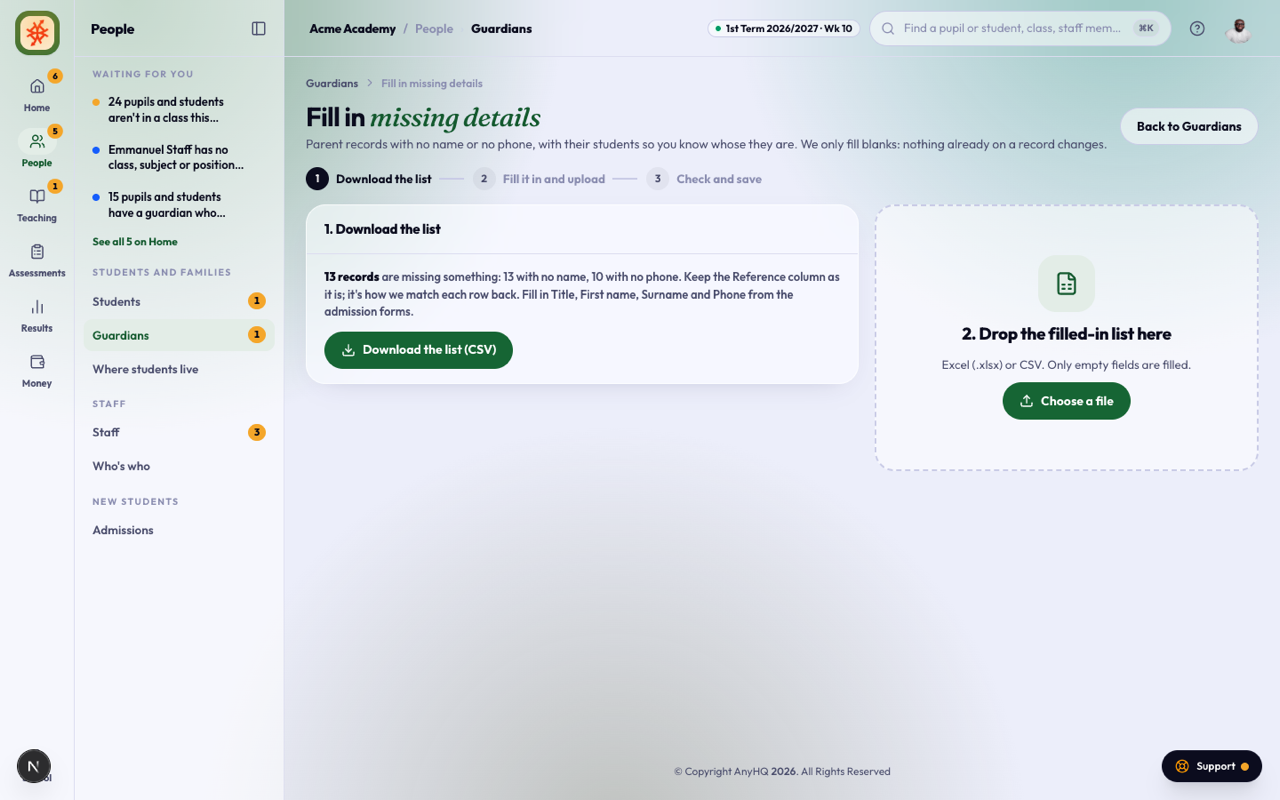
- Open Guardians. When records are missing a name or phone, a note says how many. Press Fill in missing details.
- Press Download the list (CSV). Each row is one parent record, with its students’ names and classes so you know whose it is.
- Fill in Title, First name, Surname and Phone from the admission forms. Keep the Reference column as it is: it’s how each row is matched back.
- Drop the file on the page, or press Choose a file. Excel (.xlsx) or CSV.
- Check what changes. Rows we leave alone say why: a field already filled in, a phone that isn’t a phone number, or a reference that isn’t one of your records.
- Press Save.
Only empty fields are filled. To change a name or phone that’s already there, open the student’s profile.
Give every member of staff a duty
Someone with no position, class or subject sees almost nothing. You need to manage staff.
- Open Staff. Press Filter and tick No duty, or press Show only them in the table on the note.
- Press ⋯ on a row:
- Give a position opens their record.
- Give a class or subject opens Staff › Teaching.
- Switch account off is for someone who has left. They can’t sign in; their records, scores and messages stay. Switch it back on from the same menu.
Remove unused positions
- Open Settings › Positions. When nobody holds a position, a note says so.
- Press Remove unused positions. Untick any you’ll give someone soon, then press Remove.
The default position (Teacher) is never listed: everyone with no other position holds it. Positions that reported to a removed one report to the one above it. You can only remove a position whose duties you hold yourself.
Merge duplicate students
When two active students share a name (and a date of birth, where both have one), Students shows a note. You need to manage the whole school’s students.
- Press Review on the note.
- Tap the record to keep. The one with more on it is picked for you.
- Press Merge. Results, fees and payments, guardians, enrolments, attendance and the rest move to the kept record, and the other is archived. Where both have a result for the same subject and term, the kept record’s stays.
- If they are different people, press Not the same. The pair won’t be listed again.